
Define the test before disabling anything
Write down the exact action and expected result, such as submitting a particular form or saving an Elementor draft. Record the error, page, time, plugin versions and recent changes. A failure after activation can be a single-plugin fault or an interaction; do not assume two plugins are involved without testing.
If the dashboard is inaccessible, use Recovery Mode or targeted file-based deactivation to regain access. Keep the public impact of that deactivation recorded.
Take a backup and create a private staging copy. Confirm the same action fails there before changing plugins. If staging cannot reproduce it, compare hosting, cache and external-service settings with support rather than treating a successful staging page as proof of a live fix.
Keep the feature and its dependencies active
List the plugins required to perform the test. For checkout, keep WooCommerce, the selected payment gateway and any extension essential to the failing checkout active. An Elementor test needs the builder and the add-on that provides the widget being tested.
Record the original active-plugin list and settings. Work only on staging, where payment, email and external actions have been contained. Turning off every plugin removes the feature under investigation and cannot prove that it works without a conflict.
Find the smallest failing combination
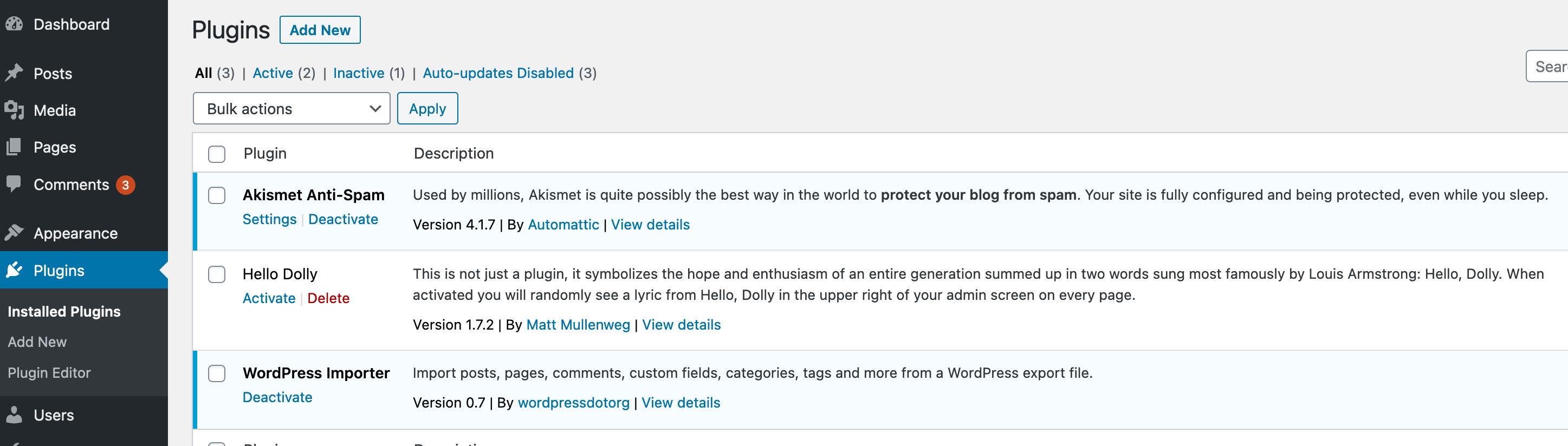
- Open Plugins > Installed Plugins on staging. Start with the nonessential plugin changed most recently, select Deactivate and repeat the exact test.
- Record whether the expected result now occurs. Restore that plugin before testing the next candidate so each comparison starts from the same recorded configuration.
- If one candidate removes the failure, reactivate it and repeat the test once to confirm the problem returns. Keep notes of the versions and action, then deactivate it again while planning a repair.
- With no single candidate explaining the issue, deactivate the nonessential set on staging while keeping the required feature plugins active. Test that baseline, then reactivate the others one at a time and repeat the test after each activation.
- When the failure returns, record the full active combination. A developer can narrow interactions involving several plugins; the last plugin enabled is a lead, not proof that its code alone is defective.
Use logs or a theme comparison when the baseline fails
If the required-plugin baseline still fails, check the host's error log at the test time or follow private debug logging. For browser-only failures such as a button that does nothing, use the request-inspection guide.
A theme can affect the same feature. On staging, record the active theme and activate a compatible standard theme through Appearance > Themes, then repeat the functional test. Layout differences are expected. If the test depends on the original theme's own feature, ask its author for a valid comparison rather than treating a missing feature as a pass.
Choose a compatible repair and repeat the original test
Send the smallest reproducible combination to the relevant authors with the versions and error excerpt. Check for a documented fixed release or a specific configuration correction. Test the update on staging before applying it live.
If overlapping plugins provide the same feature, plan which one to retain and how its data and page content will be migrated. Do not delete a plugin before exporting needed records or checking its uninstall behaviour. Use the removal guide once the replacement is verified.
Restore all required features on staging and repeat the original action, then check public pages, forms and checkout as relevant. Apply only the confirmed change live with a fresh backup. Remove temporary diagnostics and keep the test notes for the next update.
Official reference
Learn WordPress explains plugin and theme troubleshooting. WooCommerce's conflict-testing guidance covers keeping the store's required components in the test.
Get help with the next step
If the failure depends on several plugins or cannot be reproduced safely, ask BugShield to investigate the conflict. Your action, versions and test notes help us assess the work and confirm a price.