
Check recovery access and the effect of disabling the plugin
First check the site's administration inbox for a WordPress recovery email. Its private link can let you sign in and deactivate the identified plugin from the dashboard. The critical-error guide explains Recovery Mode and the logged-out verification it requires.
For file-based recovery, you need the hosting account or an existing SFTP account. SFTP transfers files over an encrypted connection; use the host's supplied connection details rather than guessing them. You cannot install a dashboard File Manager plugin while the dashboard is inaccessible.
Ask the host for a current snapshot or follow the backup guide before changing files. Disabling WooCommerce, a membership plugin, security controls or a builder interrupts the features it provides. Arrange maintenance access controls through hosting where needed and keep customer transactions paused until the feature is tested.
Find the correct website and plugin folder
Open File Manager in the hosting panel and select the directory assigned to the affected domain. Confirm it contains wp-admin, wp-content and the expected site files. With SFTP, connect through your client and open that same host-confirmed directory.
Open wp-content/plugins. This procedure covers a plugin stored in its own folder; ask the host to handle an identified single-file plugin instead. Match the folder to the path in the error, such as wp-content/plugins/example-plugin/, or ask the host to identify it from the plugin's name. Record the original folder name exactly. Do not rename the whole wp-content directory.
Rename one plugin and make the deactivation persist
- Select the identified plugin folder and choose Rename. Add
.disabledto its name, for exampleexample-plugin.disabled. Leave the files inside intact. - Try opening the normal dashboard login. If it works, sign in and visit Plugins > Installed Plugins, whose address ends in
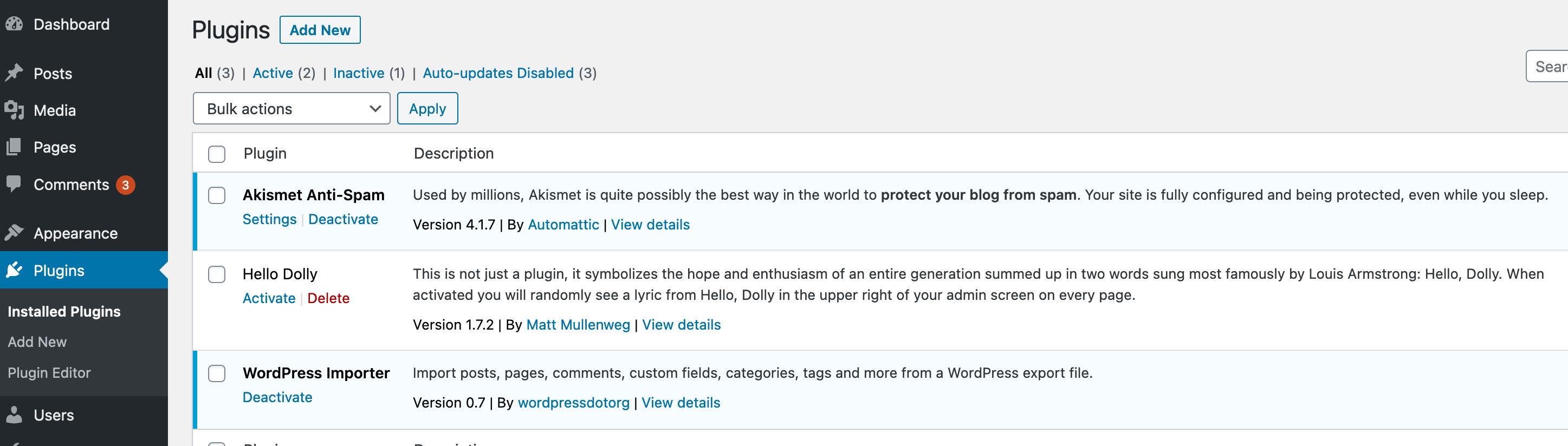
/wp-admin/plugins.php. WordPress can now record that the previously active plugin file is missing. - Keep that Plugins screen open. Return to File Manager and restore the folder's exact original name, then refresh the Plugins screen. Confirm the plugin is listed as inactive and do not activate it yet.
- Open the public site in a private window. Check the original error and note which feature remains unavailable because the plugin is inactive.
If the dashboard still fails
If renaming that folder makes no difference, restore its recorded original name and obtain the matching PHP error from hosting. Follow the logging guide only if the host needs additional evidence. Avoid repeating unrelated folder changes until you lose track of the active configuration.
A host or developer can use a broader isolation test when the error gives no usable lead. On a live shop that requires a maintenance plan and a record of essential plugins before disabling them. Use the staging conflict guide for deliberate testing once access is restored.
Must-use plugins, hosting integrations and files such as cache drop-ins are not managed like ordinary plugin folders. A Multisite network can also share a plugin across several sites. Ask the network administrator or host before changing those components.
Repair before reactivation
Check the plugin author's support notes for the error and installed version. Test a compatible fix or a carefully planned rollback on staging. Leave the failing release inactive until the original action works with its feature restored.
After applying the repair, activate the plugin through the Plugins screen and repeat the failed action, a public-page check and the relevant form or checkout test. If the error returns, use the recorded folder route to disable it again and send the evidence to its maintainer. Remove temporary maintenance restrictions only after the required customer features pass.
Official reference
WordPress describes plugin deactivation through file access, including visiting the Plugins screen before restoring folder names.
Get help with the next step
If the folder is unclear or disabling it affects your shop or login protection, ask BugShield to recover access. Send the error and recent changes so a developer can assess a targeted recovery and confirm a price.