
Check the release and recovery plan
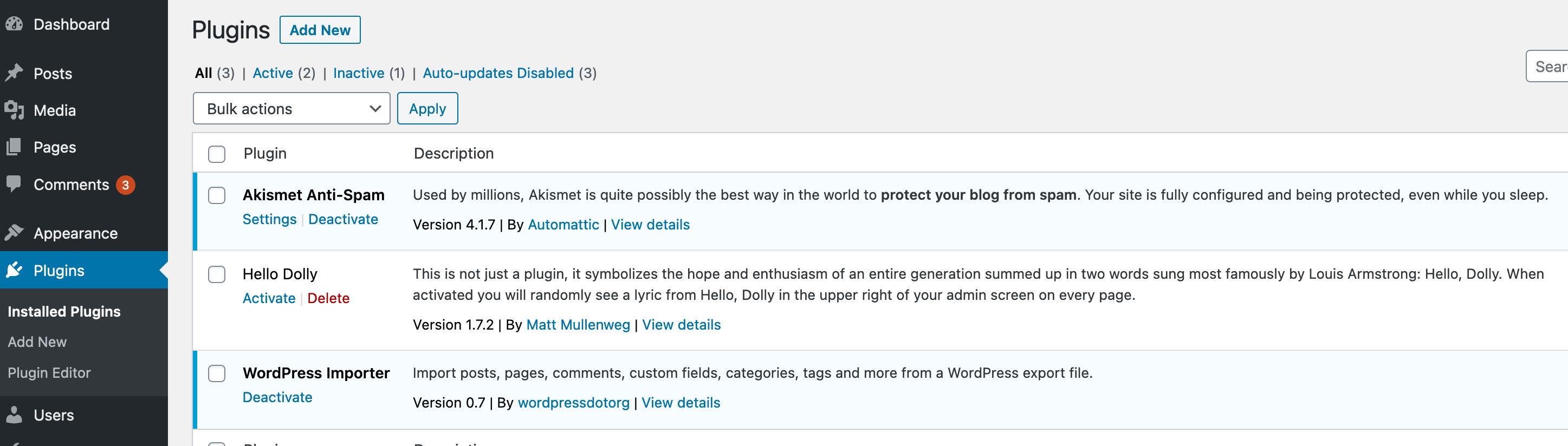
Open Plugins > Installed Plugins, note the current version and select the update's details link. Read the release notes and requirements. Check linked dependencies, such as a base plugin and its paid extension, for the author's required update order.
Take a complete backup of files and database and confirm how to restore it. Keep hosting access available even if the dashboard fails. A backup from before today's orders needs a plan to preserve those newer transactions before any full restore.
Use a staging copy for changes to checkout, subscriptions, memberships, builders or custom integrations. Read any security notice promptly and arrange a controlled update or containment with support rather than leaving a known vulnerable release indefinitely.
Update and test on staging
- Confirm the original feature works on the staging copy and that test email and payments are contained as described in the staging guide.
- Open Plugins > Installed Plugins. Choose Update now for the intended plugin and wait for the completion message before navigating away or starting another update.
- If the plugin requests a database update, read its instructions and confirm the database backup first. Complete the documented process and wait for its success notice; newer files with an unfinished data update are not a completed upgrade.
- Run the feature test before updating the next component. Follow the vendor's dependency order where components need coordinated releases, then test the complete supported combination.
Check the actions visitors rely on
Open the homepage and an inner page while logged out, then inspect mobile navigation and the affected design. Submit a test form and confirm its expected stored entry or email. For a builder update, open and save a test draft; for a shop, use the gateway's documented test procedure and verify order status and totals.
If stale styles remain after an otherwise successful update, use the cache guide. A success notice only confirms the update operation completed. It does not establish that checkout, templates or integrations still work.
Repeat the verified update live
Record the tested versions and settings. Schedule a period when someone can check the site, take a fresh live backup and repeat the verified update sequence. Keep one person responsible for the update so another administrator or automatic job does not change the same plugin during the test.
Repeat the public-page and feature checks on the live site using controlled test data. Where a provider requires live payment testing, follow its documented process and reconcile the test transaction. Do not copy an old staging database over a live shop to publish a plugin update.
Recover a failed update
If the update reports a download, storage or permissions error, record the message and ask the host or vendor to correct that condition. Do not keep retrying while another update is still running. For a critical error, follow targeted deactivation or Recovery Mode to regain access.
Use the rollback guide before replacing an updated plugin with older files. Its data changes must remain compatible. Leave an affected feature unavailable until a compatible version or restored state passes the original test.
Choose an ongoing update routine
WordPress's automatic-update controls are available per plugin when permitted by the installation. They are not limited to minor version releases. Choose a policy that includes reliable backups, monitoring and someone able to respond when an update fails.
For plugins requiring coordinated testing, assign a person and schedule to perform those updates promptly. Review inactive plugins too and remove ones no longer needed using the uninstall guide. Keeping unused files indefinitely adds maintenance work.
Official reference
WordPress explains managing plugin updates and automatic plugin and theme updates.
Get help with the next step
If you need help testing an important update or recovering a failed release, ask BugShield about plugin update support. Tell us which plugins and customer journeys need checking so the work can be scoped before it starts.