
Find out which part of the cart is wrong
Open the shop in a private window and add one simple, in-stock product. Visit the full Cart page, change its quantity and use Update cart if that button is present. Block-based carts update automatically. Move to another shop page and return. Compare the quantity and subtotal with the small basket in the header, called the mini-cart.
Record what happens before changing settings. If the full basket is correct but the header count is stale, concentrate on the theme or mini-cart widget. Products disappearing from the full basket point towards page caching or the information that connects a browser to its basket. A message rejecting a quantity can be a stock or purchase-limit rule, so read that message instead of treating it as a broken button.
Repeat with a second browser. If only one product fails, inspect its stock and purchase restrictions under Products > All Products. For colour or size choices, follow the variation troubleshooting guide. If the basket works until payment, continue with checkout troubleshooting.
Verify the assigned Cart page
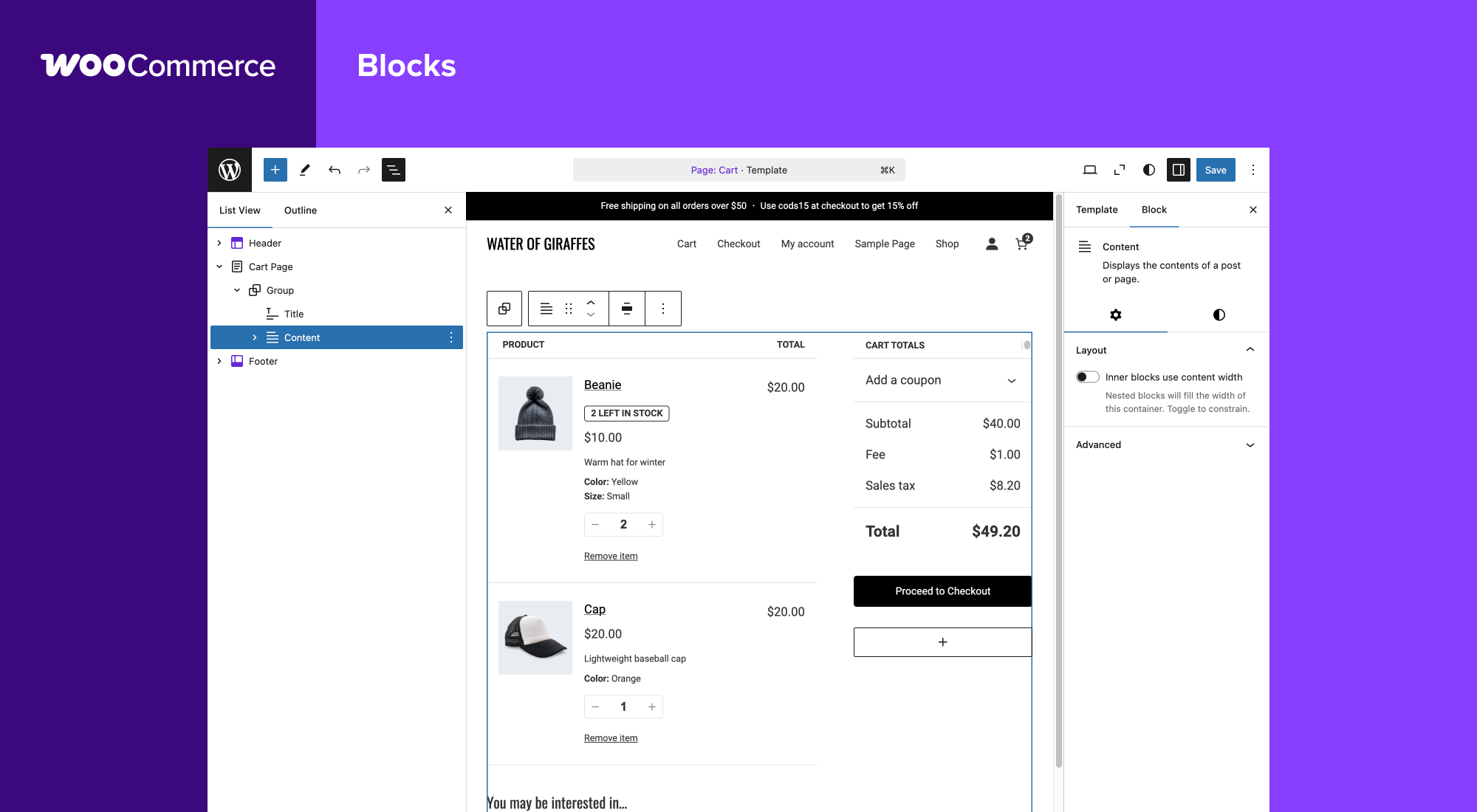
Open WooCommerce > Settings > Advanced > Page setup. Note the Cart page selection, then find that page under Pages > All Pages. Check that it is published and contains a Cart block, the [woocommerce_cart] shortcode or your supported builder's cart widget. An ordinary page titled Cart does not supply a working basket by itself.
If the setting points at an obsolete or empty page, choose the existing working Cart page and save. Check that the header's basket link opens that address. Keep one cart implementation on the page and matching formats for Cart and Checkout. Preserve its current content before replacing a block or builder widget, and test that change on a staging copy.
Prevent cached pages from replacing the live basket
Open the page-cache settings in your optimisation plugin. Find the exclusions or never-cache section and verify the actual Cart, Checkout and My account page addresses. Do not assume their addresses are the default English names. If the plugin handles WooCommerce automatically, keep its integration enabled rather than adding conflicting rules.
Your host or content delivery network can store another copy of pages. Ask support to check WooCommerce page, request and session-cookie exclusions using WooCommerce's caching requirements. This is more useful than asking them to disable all caching without a diagnosis.
After an exclusion changes, purge the affected caches. Close the private window, start a new one and repeat the same basket test. A corrected full Cart page with an unchanged header count narrows the remaining problem to the mini-cart display.
Check the browser's connection to its basket
WooCommerce uses browser cookies and stored session information to recognise a shopper's basket. It does not require you to repair generic PHP session settings. Check that product, cart and checkout pages stay on the same intended domain and HTTPS address. Note unexpected switches between www and non-www, or between live and staging addresses, and have the incorrect link or redirect corrected.
If a consent-banner change preceded the failure, compare a fresh visit before and after making a consent choice. Give the consent-plugin provider the result and WooCommerce's documented cart cookies. Ask them to check its WooCommerce integration. Keep privacy settings purposeful; accepting all tracking should not become the prescribed workaround for buying a product.
Isolate a broken mini-cart or quantity control
On staging, record recent changes to script delay, script combination and cart optimisation. Turn off one changed option, clear that cache and test again. Restore it if nothing changes. A control that starts working after that test needs a targeted exclusion or a fix from the optimisation provider.
For a builder mini-cart, temporarily replace only that widget with the theme's supported cart display on the copy. If needed, use a standard WooCommerce-compatible theme to compare behaviour. Keep WooCommerce and any product extensions required for your test active. Deactivate unrelated extensions one at a time under Plugins > Installed Plugins, testing after each change. Our plugin-conflict guide explains how to record and reverse these tests.
Confirm the fix for new shoppers
Verify adding two products, increasing and reducing a quantity, removing one item, navigating away and returning. Compare the full cart, header count and checkout total. Repeat on mobile and as a signed-in customer if accounts are enabled. A correct count immediately after a page refresh alone is not enough.
Apply the confirmed setting or component fix to the live shop without replacing its customer database. If the test still fails with standard components, give your host the time, page addresses and reproduction steps. Ask them to check cache bypass and WooCommerce session storage rather than running a blanket cleanup.
Get help with the next step
If you cannot tell whether the basket or its display is wrong, BugShield can investigate the cart and help preserve the shop's active orders and baskets while identifying the cause.