Why a shared login needs more than a new password
A login handed to a former freelancer, typed on a hotel computer or written on a sticky note stays useful to whoever holds it until you change something. A new password stops the next sign-in with the old one. Ending sessions on devices that are already signed in is a separate control, and the account email decides where any future reset link lands.
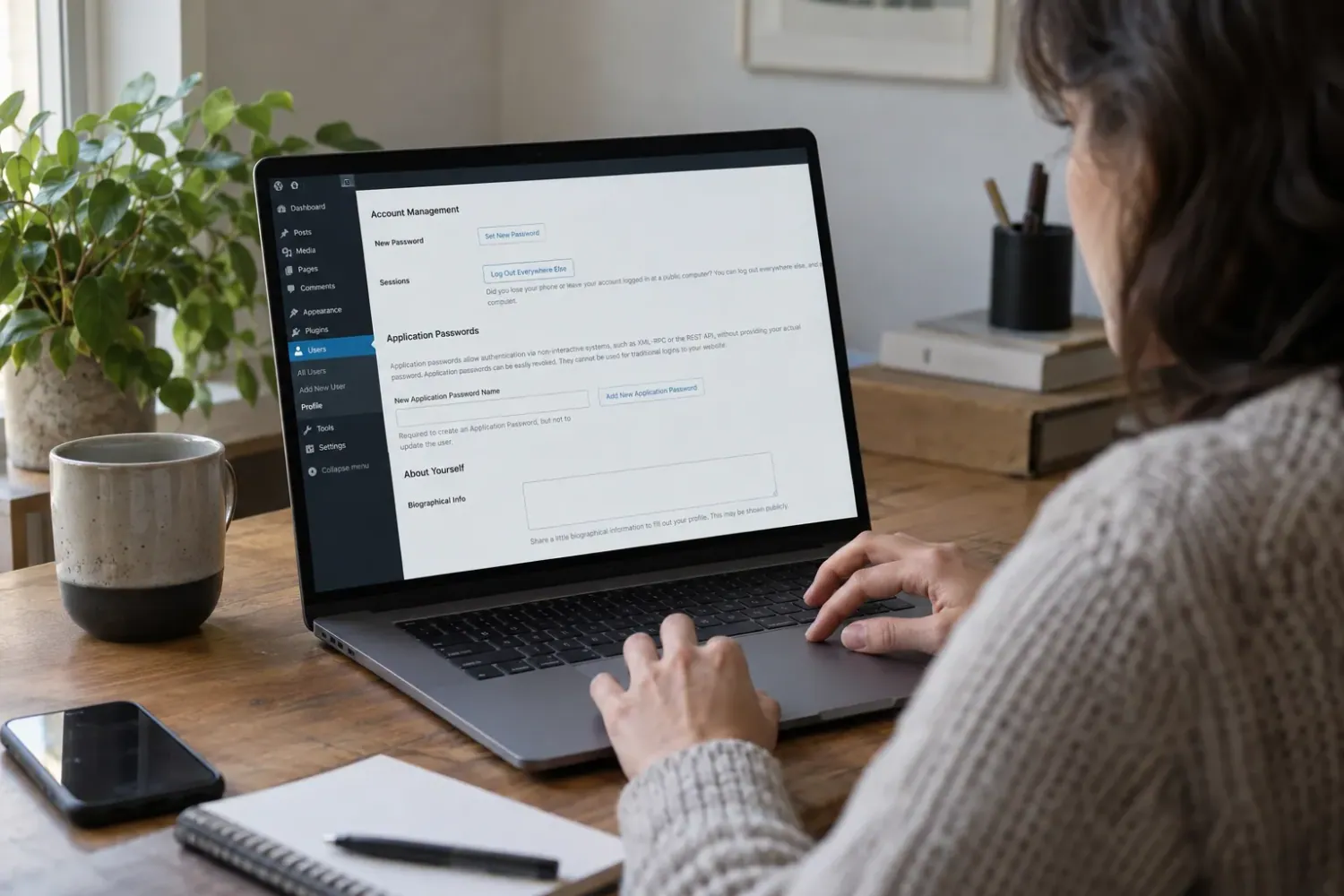
WordPress puts all three controls on one page. Open Users > Profile, or click your name at the top of the admin screen, and scroll down to the Contact Info and Account Management sections. Everything below happens there, on the account you are signed in as.
Who can reset which WordPress account
Before changing anything, work out whose account is at risk. The Profile screen only manages your own login. Every role, down to Subscriber, can edit its own profile, while changing other people's accounts depends on a capability called edit_users. On a single-site installation, only Administrators hold edit_users by default; on a Multisite network, only the Super Admin does.
A colleague who shared their Editor login can therefore follow the steps below themselves. When the exposed account belongs to someone who has left, or to someone who cannot sign in, an Administrator needs to handle it from the Users screen instead. If you are the Administrator and cannot get in at all, start with our guide to reset a WordPress admin password, then return here.
Reset the password, check the email and use Log Out Everywhere Else
Work through these steps in one sitting, from a device you trust, so the account is never left half secured.
- Open Users > Profile while signed in to the account you want to secure.
- Under Contact Info, read the email address carefully. WordPress uses it for administrative messages and notifications, and each user's address must be unique on the site. Replace any address you no longer control, such as an old work inbox or one a contractor set up for you.
- Under Account Management, click Set New Password (the WordPress documentation and some versions label this button Generate Password). WordPress shows a new field containing a generated password. Save it straight into your password manager before you go any further.
- If you type your own password instead, watch the strength indicator and aim for Strong, shown in green. A weak choice brings up a checkbox asking you to confirm a weak password; treat that box as a signal to choose again.
- Click Log Out Everywhere Else to sign the account out of other devices, such as a phone or a public computer.
- Click Update Profile at the bottom of the screen to save your changes.
Check that the changes saved
After clicking Update Profile, look for the User Updated message at the top of the screen. The WordPress documentation is blunt on this point: without that message, your changes are not saved. Go back over the password and email fields and click Update Profile again before moving on.
Next, test the other side. Pick up a device you know was signed in, such as your phone, and reload the admin area. A login prompt there shows that session has ended. Sign in with the new password to confirm it works, then make sure your password manager holds the new version. If BugShield keeps access details for the site, update those as well; our note on changing your password covers that step.
Keep the result in proportion. A login prompt on your phone proves that one device lost its session. Whether anyone else signed in before you acted remains unknown, and the test says nothing about the other accounts on the site.
What the Profile screen cannot tell you
The Profile screen gives you a button, not a report. You will not find a list of who is currently signed in, a warning about weak passwords on other accounts, or a record of what someone did while they had access. A clean result for your own login leaves those questions open.
Signs such as unfamiliar administrator accounts, changed settings or content you did not publish point to a bigger problem than one exposed password. A proper recovery after a hack involves an access audit and a clean restore, and a new password alone does not undo changes already made. If the reset instead leaves you unable to sign in, our developers handle WordPress login problems as a one-off fix.
Stop the WordPress login being shared again
Shared logins return whenever people need access and have no account of their own. Give each person a separate login with the role their work requires; our guide to manage WordPress user roles shows how to add and remove users without losing their posts. Deciding which role each person should actually hold is a wider job, covered in our user roles audit.
Finally, add a second factor to your own account. With two-factor authentication switched on, a leaked password by itself no longer opens the door. Set it up on your login first, store the recovery codes somewhere separate and test a sign-in before asking anyone else to follow.
Sources
WordPress log out everywhere else reset password FAQs
Does Log Out Everywhere Else sign me out of the device I am using?
WordPress describes the button as logging you out of other devices, such as your phone or a public computer. Your current screen stays signed in, so you can finish your profile changes and click Update Profile.
Can I use the Profile screen to secure another person's WordPress account?
No. The Profile screen only manages the account you are signed in as. Managing other users needs the edit_users capability, held by Administrators on a single site and only by the Super Admin on Multisite, so ask an Administrator to handle that account.
Why does WordPress reject the email address I want to use?
Each user's email address must be unique on the site. If another account already uses that address, pick a different one or ask an Administrator to find out which account holds it.
What if the User Updated message does not appear?
Your changes have not saved, so the old password and email are still in place. Check the fields again, click Update Profile once more and only rely on the new password after the message appears.
Will resetting my password show who used my account?
No. The Profile screen does not show sign-in history or current sessions. Review the site's user accounts and recent changes separately, and treat the site as compromised if you find anything you did not do.