What WordPress user roles actually control
WordPress ships with six built-in roles: Super Admin, Administrator, Editor, Author, Contributor and Subscriber. Each role is a bundle of capabilities, which are individual permissions covering tasks such as publishing posts, moderating comments and installing plugins. The WordPress documentation makes a helpful point: no role should be treated as senior to another. A role describes someone's responsibilities on the site, so the right question is what a person does, not how important they are.
Access tends to grow by accident. A freelancer gets Administrator to fix one menu, a client receives full access because anything less felt rude, and two years later nobody remembers why five people can install plugins. Every one of those logins becomes a way in if its password leaks.
Matching each job to the lowest suitable role
Start from the tasks, then pick the smallest role that covers them. On a single site, the built-in roles map to everyday jobs like this:
Clients sit in different places depending on the arrangement. A client who owns the business and the site keeps an Administrator account. A client who only approves or tweaks blog posts needs Editor and nothing more. A developer doing a one-off job needs Administrator for the duration of the work, and that account belongs on your review list once the job ends.
Editors on a single site also hold the unfiltered HTML capability, which lets them save HTML that WordPress would otherwise filter out of their content. Treat Editor as a trusted role rather than a small step up from Author.
- Writes drafts for you to review: Contributor. They can write and edit their own posts but cannot publish them, and by default they cannot upload images or other files.
- Publishes their own work: Author. Authors can publish, edit and delete their own posts and upload media, but cannot change anyone else's.
- Runs the content side, editing other people's posts, pages, categories and comments: Editor.
- Installs plugins and themes, runs updates, manages users or changes settings: Administrator. Keep this group as small as you can.
- Customers or members who only log in and manage a profile: Subscriber.
How to audit accounts for excess access
An audit takes around twenty minutes on a small site, and the order below keeps you from removing the wrong person. Work through the Administrator group first, because those accounts carry the most power.
Pay close attention to any administrator you cannot place. Attackers have created hidden administrator accounts through compromised plugins, so an unfamiliar admin login deserves investigation before you simply delete it. For a fuller walkthrough of adding and editing accounts, see our step-by-step guide to managing user roles.
- Open Users > All Users and click the Administrator filter above the table to list every admin account.
- Write down each person and what they have actually done on the site recently, not what they were originally hired to do.
- Compare those tasks with the role mapping above and mark anyone whose work fits a lower role.
- Tick each marked user, choose the new role from the Change Role To dropdown and click Change.
- Delete accounts nobody uses. When WordPress asks what to do with their content, attribute it to another user so posts stay published.
- Repeat the review for Editors, then open Settings > General and check New User Default Role. Subscriber is the safe choice unless new sign-ups genuinely need to write content.
Confirming the change worked
After a downgrade, check whether the account can still perform the task you intended to remove. Ask the person to sign in, or use a test account with the same role. Under the default WordPress permissions, Editors cannot manage plugins or site options. Check any custom roles and plugin-added permissions separately.
Missing menus are an observation, not proof. A plugin can add its own screens or capabilities, and an interface plugin that hides a menu does not remove the permission underneath it. Firmer evidence comes from the role shown on the Users screen and from testing the exact task you meant to remove, such as visiting Plugins > Add New, which requires the capability to install plugins.
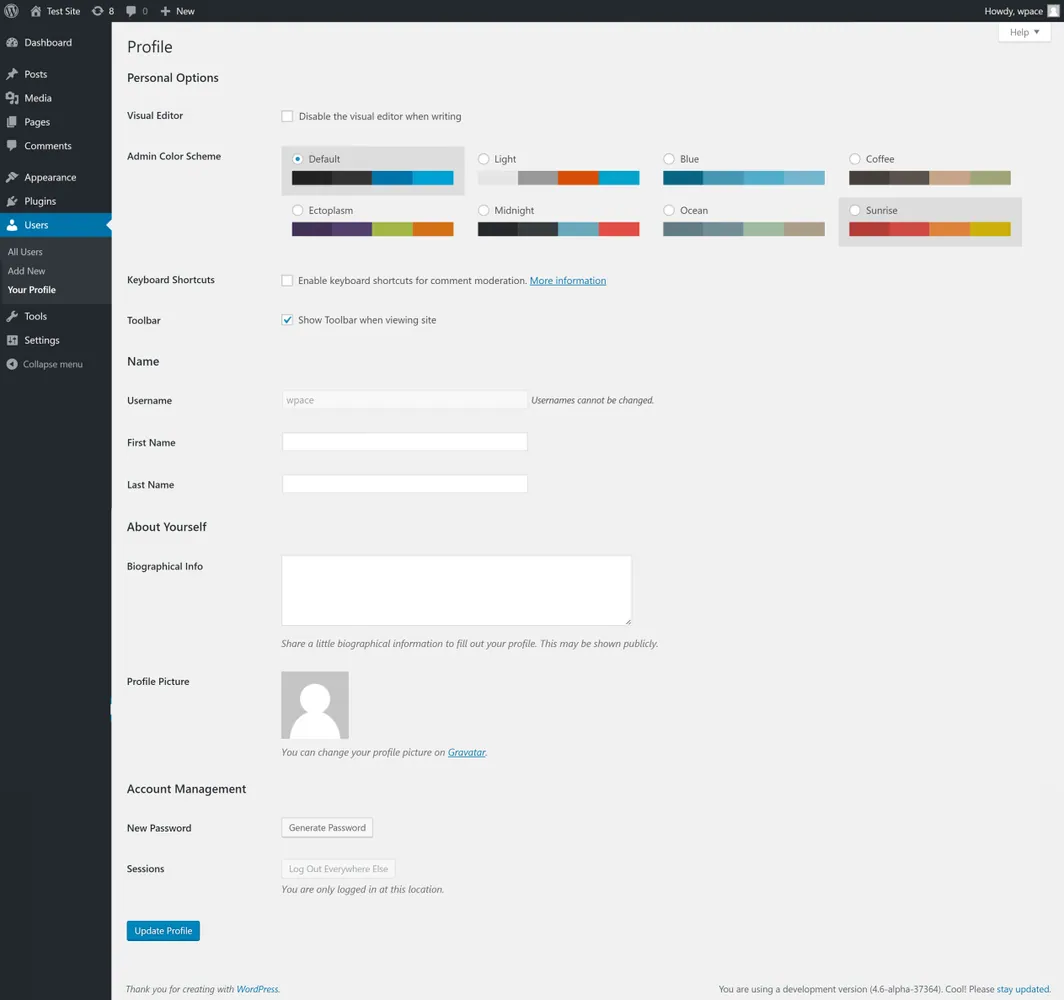
Changing a role leaves the password untouched. For your own account, the Your Profile screen offers Generate Password and a Log Out Everywhere Else button that ends sessions on other devices, both worth using once the audit is done. When someone has left, you can delete their account once their posts are attributed to another user.
When custom roles, plugins or Multisite change the picture
The mapping above describes default capabilities. Developers and plugins can add capabilities to existing roles or create new roles entirely, so a shop staff role or an Editor given extra theme access will not match the table. When a role name looks unfamiliar, find out which plugin created it before you change anyone's access.
Multisite networks work differently. Site Administrators there cannot install plugins or themes, edit files or manage users by default, because those capabilities belong to the Super Admin. Neither Editors nor site Administrators hold the unfiltered HTML capability on Multisite. Audit Super Admins separately, since they control every site on the network.
Keeping access tidy after the audit
Run the review again whenever someone leaves, a project ends or you install a plugin that adds its own roles. A short list of administrators also keeps plugin and core updates with people who follow a tested process rather than whoever happens to be logged in.
Administrators on a single site can edit plugin and theme files from the dashboard as well. If nobody on your team uses those editors, you can turn them off and remove one more risk that sits behind an administrator password.
Sources
WordPress user roles FAQs
Can a Contributor add images to their posts?
Not by default. Contributors lack the capability to upload files, so they cannot upload media. An Editor can add images after the draft is submitted, or you can make the person an Author if they need to publish with images.
Should my web developer have an Administrator account?
On a single site, installing and updating plugins requires Administrator, so a developer doing that work needs it. Give them their own named account rather than sharing yours, and downgrade or delete it when the job is finished.
Which role should new user registrations receive?
Set it under Settings > General in the New User Default Role field. Subscriber suits most sites, because it only allows someone to manage their own profile.
Will deleting a user remove the posts they wrote?
You choose. When you delete a user, WordPress asks whether to delete their content or attribute it to another user. Pick another user to keep their posts published.
Why does one of my users have a role that is not in the default list?
A plugin or custom code has created it. Roles added this way carry their own set of capabilities, so check which plugin owns the role and what it allows before changing anyone assigned to it.