
Read the metric before changing settings
Core Web Vitals measure three parts of the visitor experience. Largest Contentful Paint (LCP) measures when the largest visible image or text block appears. Interaction to Next Paint (INP) measures how promptly the page responds visually to interactions. Cumulative Layout Shift (CLS) measures unexpected movement of page content.
Google's good thresholds are LCP at or below 2.5 seconds, INP at or below 200 milliseconds and CLS at or below 0.1. Assessment uses the 75th percentile of visits, separated by device type. When all three have sufficient data, each needs to meet its target; one fast homepage test does not establish that.
Open PageSpeed Insights, enter the full URL of an affected public page and select Analyse. Check Mobile and Desktop separately. Save the report link, date and failing metric. Test a representative product, service page or article as well as the homepage, especially when they use different templates.
Separate real visitor results from a test run
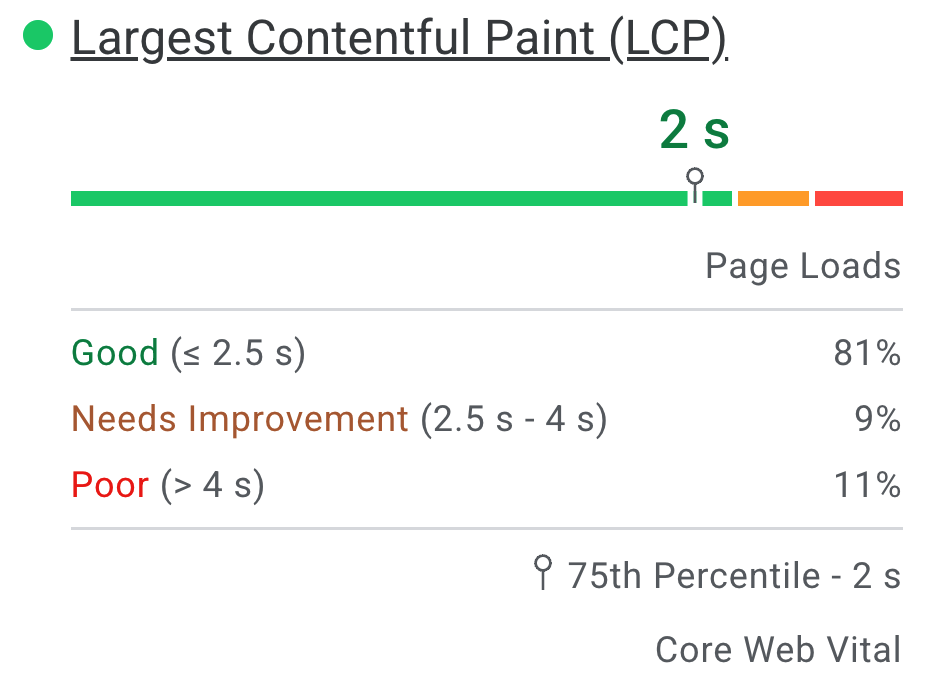
The real-user section in PageSpeed Insights describes a rolling 28-day collection of eligible Chrome visits. Check whether it says This URL or Origin: origin data covers the wider site, so it cannot identify one page's experience. An absence of enough data is not a passing result.
Further down, the diagnostic section runs Lighthouse under test conditions. Use its findings to investigate files and layout, but keep the lab performance score separate from the Core Web Vitals assessment. Total Blocking Time in a loading test is not the same measurement as INP from visitor interactions. Google's PageSpeed explanation covers these two sources.
For repeatable comparisons, record the same URLs and device mode, run several tests and look for a consistent change. Stage template or plugin changes on a test copy, where menus, forms and checkout can be exercised before release. A password-protected staging page will need local testing because the public testing service cannot sign in for you.
Improve LCP by identifying what is delayed
Expand the report's LCP findings and identify the highlighted element. For an image, follow the image optimisation guide to serve a suitable size and format, then confirm that the page uses the replacement. A first-screen main image should not wait for lazy loading; our lazy-loading guide explains how to preserve its early load.
Read the LCP breakdown as well. A long server response calls for checking hosting and page-cache behaviour. When an image request starts late, investigate its discovery or loading priority. Content that downloads but remains hidden behind an entrance animation or slider needs its display behaviour changed. Google's LCP guide distinguishes these delays.
In Elementor, test the affected widget without its entrance animation or replace a complex first-screen carousel with a static image on staging. Keep the original design settings so you can compare. If the LCP element is text, investigate its font loading and the styles needed to display it instead of compressing unrelated pictures.
Improve INP by testing real interactions
Reproduce the delay on a phone: open the navigation, change a product variation, use a filter and submit a test form. Note which action feels slow and whether it happens before or after consent choices, chat widgets or other third-party features load. A page-load screenshot cannot establish whether those interactions respond promptly.
On staging, remove or disable one nonessential widget or integration associated with the delay, then repeat the same action. Preserve the scripts required by forms, payment and consent handling. An improvement gives you a specific component to update, simplify or raise with its developer. Blanket delay-JavaScript settings require functional testing because delaying a required script can make the first click fail.
Google's INP guidance explains how long browser tasks postpone visual feedback. When the cause is unclear, ask a developer to record the affected interaction in Chrome's Performance panel and identify the responsible work. Give them the exact steps, device and timing rather than only a score.
Improve CLS by reserving space for arriving content
Watch the page load and scroll through it. Note images, embeds, adverts or banners that push existing text down after it appears. In the layout-shift findings, the moving element can be the content displaced by something above it, so inspect what arrived just before the movement.
Set an appropriate image aspect ratio or dimensions in the theme or widget so space exists before the image loads. Reserve a suitable responsive area for embeds and adverts. For a late banner, choose a layout that has reserved space or an accessible overlay that does not rearrange the page. Check text wrapping when the web font replaces its fallback. Google's CLS guide covers these causes.
Verify at narrow and wide screen sizes and after opening tabs or accordions. Avoid fixing a jump with an arbitrary desktop-only height that clips content on mobile. Keep required notices usable and readable while adjusting their layout.
Confirm the live change and monitor the affected group
After publishing the tested change, clear the affected page and asset caches. Check the live visitor journey, then rerun the same lab tests. Record the release date so you can distinguish an immediate diagnostic improvement from the slower change in rolling visitor data.
In Google Search Console, open Core Web Vitals, select the relevant device report and inspect the affected URL group. After fixing its representative pages, use the issue's validation control and monitor the result. Google's report guidance explains its grouped URLs and validation period. A single good lab run does not instantly replace earlier field visits or prove every page in a group is fixed.
Get help with the next step
If the report points to several competing causes, BugShield can help prioritise the WordPress changes and test them against the pages and interactions your visitors use.