
Separate a certificate warning from a page problem
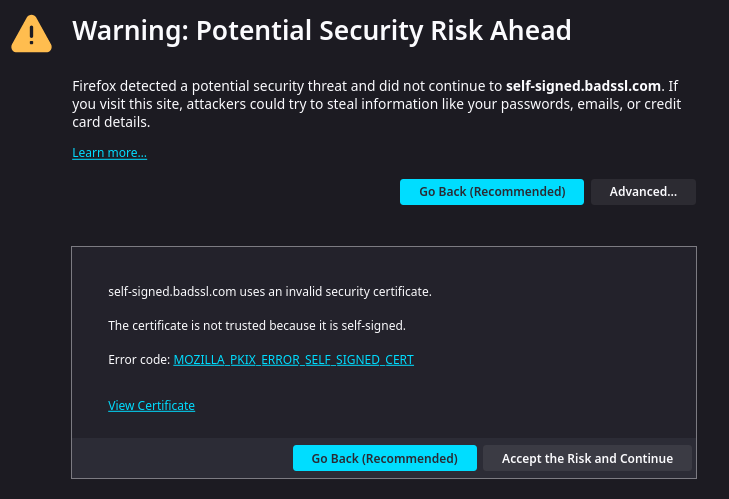
A full-page privacy or certificate warning appears before the browser trusts the connection. If the page loads normally over HTTPS but some images or scripts are blocked, follow the mixed-content guide instead. A Too many redirects message belongs to the HTTPS redirect checks.
You need access to the hosting account or the person responsible for it. Do not ask visitors to bypass the warning or enter payment details while it is unresolved. A certificate confirms the connection and hostname; it does not establish that the site is free of malware.
1. Record the exact error and check another device
Copy the address from the browser, including whether it contains www. Record the warning code and time. Use a second device or another network to check whether the same address fails there too, without proceeding past a privacy warning.
- Date or expiry warning: check your device's automatic date and time first. If multiple devices agree, inspect the certificate expiry with the host.
- Name mismatch: the certificate does not cover the exact hostname requested, or the domain reaches the wrong server.
- Untrusted issuer or chain: the browser cannot connect the certificate to a trusted issuer. Ask the host to verify the full certificate installation.
2. Inspect the certificate in your hosting account
Sign in through your host's known account address and select the affected website. Open its SSL, SSL/TLS or Certificates screen. Find the certificate assigned to the exact domain and check its status, covered hostnames and expiry date. A certificate installed on an old hosting account does not protect a different server after a migration.
If it is expired or absent, use the provider's Renew, Issue or Install action for its managed certificate. Confirm the correct domain selection before starting. Wait for a success status and test again. A failed issuance message needs attention; clicking repeatedly does not repair a DNS or validation problem.
Send support a focused request if you cannot complete the action: Please verify the certificate served for this exact hostname, its expiry and chain, and whether its DNS records reach this server. Include the warning and timestamp, not account passwords or private certificate keys.
3. Check www and recent DNS changes
Test the HTTPS versions of both the main domain and www if visitors use both. Even a hostname that immediately redirects needs a valid certificate, because the browser checks HTTPS before reading that redirect. Ask the host to include both required names rather than changing WordPress's address fields to hide a mismatch.
If the error began after a move, ask support to verify A, AAAA and CNAME records against the intended server. These records can direct different connections to different destinations. Keep unrelated mail records unchanged, and avoid deleting records simply because their names are unfamiliar.
4. Check both sides of Cloudflare if you use it
Cloudflare sits between the browser and your hosting server. That creates two HTTPS connections to check: visitor to Cloudflare, and Cloudflare to the hosting server, also called the origin. In its dashboard, select the domain and inspect SSL/TLS rather than assuming a hosting renewal updates both sides.
Full (strict) validates the origin certificate and requires an unexpired certificate covering the hostname from a supported issuer. If Cloudflare reports error 526, have the host correct the origin certificate for that mode. Error 525 concerns the HTTPS handshake and also needs connection investigation. Do not switch to Flexible merely to hide an origin-certificate fault.
A Cloudflare Origin CA certificate is intended for the Cloudflare-to-origin connection. Browsers do not trust it directly. If DNS proxying was turned off, ask the provider whether the origin needs a publicly trusted certificate before changing the proxy setting again.
5. Verify recovery and future renewal
Reload the exact failing address in a fresh browser window and confirm the certificate warning is gone. Check login, a contact page and checkout if present. Then test from the second device or network used earlier. Record which certificate was repaired and how renewal is managed.
Ask the host to confirm automatic renewal is enabled and that its domain-validation method can still succeed. Keep the provider's contact details current. Once HTTPS works, use the redirect guide if HTTP visitors still remain on HTTP; handle any remaining blocked page resources through the mixed-content guide.
Official references
See WordPress HTTPS guidance and Cloudflare's Full (strict) certificate requirements.
Get help with the next step
If the hosting panel reports a valid certificate but visitors still receive a warning, ask BugShield to investigate the SSL error. Share the exact hostname and browser message so the next check targets the failing connection.