Confirm the certificate works before changing WordPress
Most HTTPS trouble on WordPress starts with steps taken in the wrong order. Someone changes the address settings, the site breaks, and the next fix piles on top of the first. WordPress is fully compatible with HTTPS once a TLS/SSL certificate is installed and available to the web server, so the certificate comes before anything else.
Open your homepage with https:// typed in front of the domain. A certificate error instead of the page means you stop there and resolve the certificate with your host. The WordPress handbook states that SSL must already be configured on the server before the admin constants described below will work properly. Once the certificate loads cleanly, our guide to a hosting-level HTTPS redirect covers sending visitors from http:// to https:// without losing page addresses.
Set both WordPress URL settings to https://
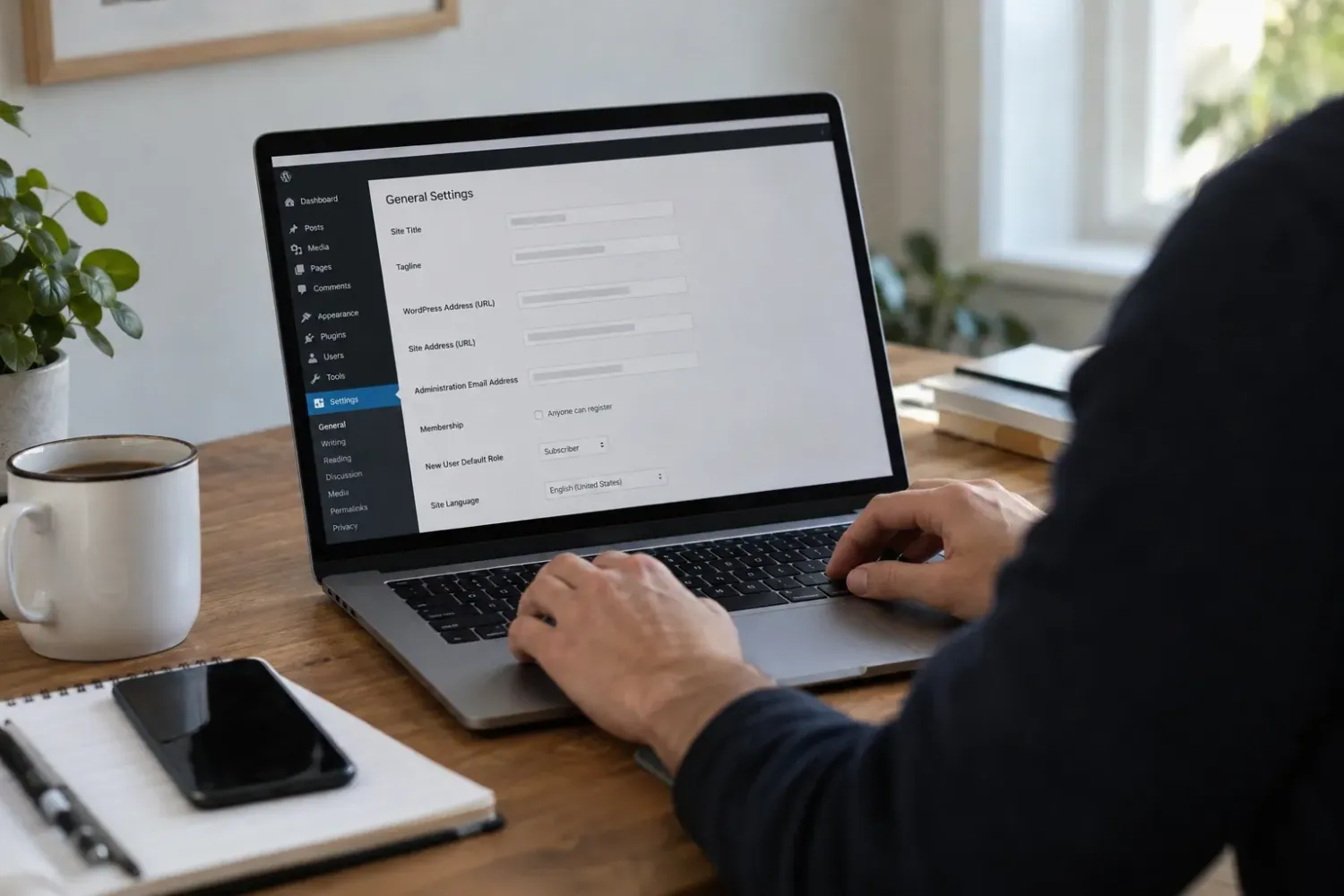
Settings > General holds two fields that control where WordPress lives. Site Address (URL) is the address visitors type to reach the site, and WordPress Address (URL) is where the core files sit. According to the migration documentation, both should start with https:// and neither should end with a slash. Change them, save, and expect to sign in again.
When the settings screen is unreachable, or the fields are greyed out, the values can be set in wp-config.php instead. Adding define( 'WP_HOME', 'https://example.com' ); and define( 'WP_SITEURL', 'https://example.com' ); with your own domain hard-codes both addresses. The fields on the General screen then stop being editable, and the handbook describes the approach as hard-coding rather than the best fix. Greyed-out fields are a clue in themselves: those constants already exist somewhere, and an old http:// value there will override anything you save on screen.
Two emergency routes appear in the same documentation. One adds update_option lines to the active theme's functions.php file; the other sets the RELOCATE constant in wp-config.php so the login screen rewrites the site URL. Both exist only to get you back in. The functions.php lines must come out once the site loads, and the handbook warns that leaving RELOCATE in place is insecure because, in some configurations, an attacker can change your site URL to anything they want.
Force HTTPS for logins and the admin area
With the addresses corrected, the next job is making sure nobody signs in over plain HTTP. WordPress provides the FORCE_SSL_ADMIN constant for exactly this. Setting define( 'FORCE_SSL_ADMIN', true ); in wp-config.php forces all logins and all admin sessions over SSL. Older tutorials mention FORCE_SSL_LOGIN, which was deprecated in WordPress 4.0, so replace that line rather than keeping both.
Placement matters here. The official HTTPS guidance says defining these constants in a plugin file is not sufficient; they belong in wp-config.php. Save a copy of the file before editing, so the working version is ready to restore if the admin area stops loading.
Fix the HTTPS redirect loop behind a reverse proxy
Some hosting setups place a reverse proxy in front of WordPress. A reverse proxy is a server that accepts the visitor's secure connection and passes the request on to the WordPress server, sometimes over plain HTTP. WordPress sees what looks like an insecure request, redirects to HTTPS, receives another apparently insecure request, and the browser ends up trapped in an infinite redirect loop.
The documented fix lets WordPress recognise the HTTP_X_FORWARDED_PROTO header, which the proxy sets to report the visitor's original protocol. Alongside FORCE_SSL_ADMIN in wp-config.php, the handbook adds a check that sets $_SERVER['HTTPS'] to on whenever that header contains https. The check searches the whole value because some setups send a comma-separated list such as http,https.
One condition sits underneath all of this: the proxy must actually send the header. If you do not control the proxy, ask your host whether X-Forwarded-Proto is passed through before relying on the code. A loop confined to the login screen has other causes as well, including cookies and caching, and our login redirect loop guide works through them. For a loop across the whole site, look for competing rules using our advice on redirect chains and conflicting rules.
Clear the leftover http:// links behind mixed content
Mixed content appears when a page loads over HTTPS but pulls in an image, script or stylesheet from an http:// address. Browsers respond by withholding the clean padlock or blocking the insecure file outright. Changing the URL settings leaves these references untouched, because WordPress stores them elsewhere.
The migration handbook lists where they hide. Image links live in post content, inside the wp_posts table. The options table holds more than siteurl and home, including the upload path and values saved by plugins. Widgets carry their own URLs and can be edited at Appearance > Widgets, while theme files such as sidebar.php and footer.php can contain hand-typed links.
Back up the database and keep a copy off-site before you search it. The handbook calls for a full database search for anything left behind, and warns you to understand each field before replacing its contents. Leave the GUID alone: the permanent identifier stored with each post is singled out as something not to change, even though it contains the old address. Our step-by-step guide to fixing mixed content warnings shows how to trace an insecure file back to its saved URL, including inside Elementor and caches.
Verify the HTTPS move and remove temporary fixes
WordPress has no built-in mixed-content scanner, so the final checks happen in your browser, page by page. Work through them in order.
A clean padlock on the pages you opened is an observation about those pages, not proof that the whole site is clear. Archives, forms and older posts you did not visit can still reference http:// files. A site that recovered after several simultaneous changes also tells you nothing about which change solved it, so change one thing at a time where possible and recheck after each. Once the pages look right, our free security header checker reads your public website response and shows which browser protections are present.
- Remove any update_option lines from functions.php and delete the RELOCATE line from wp-config.php.
- Clear your caching plugin and any hosting cache, then open the homepage, an image-heavy post and a key page in a private browser window.
- Check the padlock on each page and open the browser console to look for mixed content warnings that name http:// files.
- Sign out, visit your login page using http://, and confirm you land on an https:// login screen.
- Sign in and confirm Settings > General shows both addresses starting with https:// and without a trailing slash.
Sources
WordPress mixed content HTTPS FAQs
Why does my site still say not secure after the certificate was installed?
The certificate only secures the connection. If Settings > General still lists http:// addresses, or pages load images and scripts from http:// links saved in content, widgets or options, the browser will not show a clean padlock until those are corrected.
Should I use WP_HOME and WP_SITEURL or the General settings screen?
Use Settings > General when you can reach it. The wp-config.php constants are a hard-coded override for when the screen is unreachable, and once they are defined the fields on the General screen can no longer be edited.
Can I add FORCE_SSL_ADMIN through a plugin instead of editing wp-config.php?
No. The WordPress handbook states that defining it in a plugin file is not sufficient. Add define( 'FORCE_SSL_ADMIN', true ); to wp-config.php, and only after SSL is working on the server.
Is it safe to replace every old http:// address in the database?
Only with care. Back up the database and store a copy off-site first, check what each field does before changing it, and leave post GUIDs unchanged even when they contain the old address.
How long can the RELOCATE line stay in wp-config.php?
Remove it as soon as you have signed in and confirmed both addresses under Settings > General. The handbook warns that leaving RELOCATE in place is insecure because, in some configurations, an attacker can change your site URL.