What a manual WordPress database backup covers
WordPress keeps your words and settings in one place and your code in another. The database, held in MySQL or MariaDB, stores posts, pages, comments and settings. Themes, plugins, uploads and wp-config.php sit as files on the web server. The WordPress handbook on backing up your database states plainly that its export steps cover the database and not those files.
Downloading your WordPress folder therefore leaves the database behind, and exporting the database leaves your images and plugins behind. A typical site needs both to come back fully, so plan a manual file backup alongside the export. The handbook recommends backing up the database at regular intervals and always before an upgrade or a move.
Choose the right export tool for your site
Most hosting control panels include phpMyAdmin, a web interface for managing databases, and Plesk, cPanel and DirectAdmin each link to it from their database pages. For a small or medium site, phpMyAdmin is the simplest route and needs no command line.
Size changes the choice. The handbook warns that phpMyAdmin cannot handle large databases and points to mysqldump instead, a command-line tool you can run when your host gives you SSH access. cPanel also offers Download a MySQL Database Backup, which produces a .gz file you can restore through cPanel. Skip cPanel's full backup option for this job: the handbook describes those archives as strictly for archival and says they cannot be restored via cPanel.
Export the database with phpMyAdmin
Before you start, open wp-config.php and note the DB_NAME value and the table_prefix, which is wp_ on a default install. Those two details stop you exporting the wrong database, or another application's tables on shared hosting.
The DROP TABLE option in the steps below earns its place at restore time. When the file is imported, each existing table of the same name is deleted before being recreated, so the backup can overwrite an older copy cleanly instead of clashing with it.
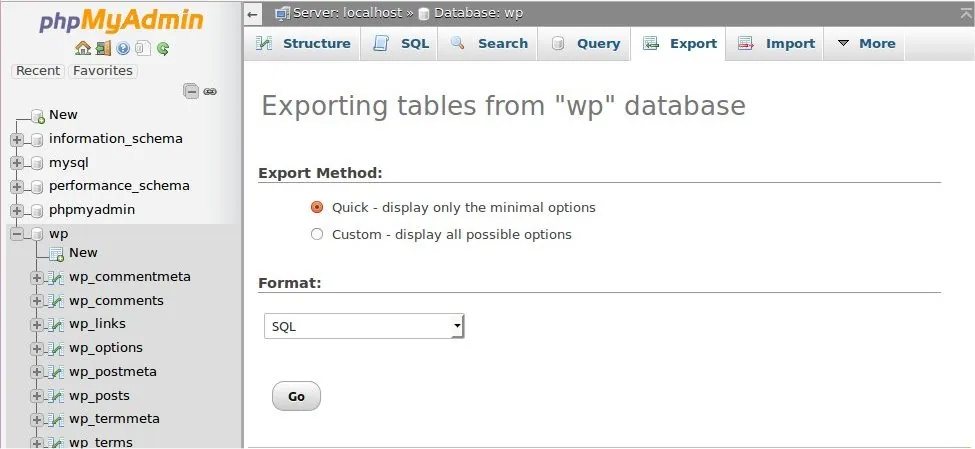
- Log in to phpMyAdmin and select your WordPress database in the left-hand panel.
- Open the Export tab and choose Custom rather than Quick so every option is visible.
- In the table section, keep all tables selected, or pick only those starting with your table prefix if other software shares the database.
- Choose zipped or gzipped compression for a large database, and leave the format set to SQL.
- Under object creation options, tick Add DROP TABLE / VIEW / PROCEDURE / FUNCTION / EVENT / TRIGGER statement.
- Click Go and save the file with the date in its name, somewhere you will find it again.
Use mysqldump when the database is too big
With SSH access, one command produces the same kind of SQL file and a second compresses it. Replace the host, username and database name with the values from wp-config.php. The -p flag makes the tool ask for the password, so you never type it into the command itself, and --result-file names the file the export is written to.
mysqldump --add-drop-table -h db_host -u db_user -p --result-file=site-db-2026-10-15.sql db_name, then gzip site-db-2026-10-15.sql
The --add-drop-table flag does the same job as the phpMyAdmin tick box. The handbook also shows bzip2 compression but notes gzip is faster for a large database. Once the file exists, download it off the server, because a copy stored only beside the site disappears with the site if the hosting account is lost.
Keep the database export and files as one backup set
A database from Monday paired with files from Friday can leave posts pointing at images that do not exist yet, or plugins expecting settings they never wrote. The guidance on WordPress backups suggests treating both halves as one backup set made around the same time: export the database first, then copy the files, and optionally store the SQL file inside the same folder or archive.
Keep more than one set. The handbook recommends three to five recent backups in different locations, such as your hosting account, cloud storage and your own computer, so a single corrupted copy never leaves you stuck. Where automatic backups already run, it also advises an occasional manual backup to confirm the process is working. BugShield's off-site backups handle the scheduled side, and a hand-made export gives you an independent second copy.
Prove the database backup restores before you rely on it
WordPress documents the export and import steps but gives no formal completeness test, so the checks below are practical habits rather than documented guarantees. Run them against a copy and never the live database. A phpMyAdmin import replaces the tables in whichever database you select, and picking the live one by mistake would roll your site back to the moment of the export.
- Check the file size. A few kilobytes from a site with years of posts points to a failed or partial export.
- Open the uncompressed SQL file in a text editor and read the last lines. They should finish with complete SQL statements, not a line cut off halfway.
- Create a new, empty database in your hosting panel, then import the file through the Import tab with SQL selected as the format.
- Compare the imported table list with the live database, and browse the posts table for your most recent post.
- If your host offers staging, point a staging copy of the site files at the test database and load it.
Restoring for real: files first, then the database
Read the test results for what they show. Matching tables and your latest post confirm the file imports and holds recent content. Only a working site built from the full set, files included, shows the backup can bring the site back. A failed import is far better discovered on a quiet afternoon than during an outage.
When you need the backup, the handbook's order is files first, then the database. Import the SQL file into the database named in wp-config.php, and if you created a new database user or password during a move, update wp-config.php to match. Anything written after the export, such as new orders or comments, will be gone, so take a fresh export of the current state before you overwrite it.
Our guide to restore WordPress from a backup covers choosing a restore point and protecting newer content. If an import errors or the site still breaks afterwards, a one-off backup restore service can review the copies you have before any work starts.
Sources
Back up WordPress database manually FAQs
Does exporting my WordPress database also back up images and plugins?
No. The export holds posts, pages, comments and settings. Themes, plugins, uploads and wp-config.php are files on the server, so copy them separately and keep them with the SQL file as one set.
Should I pick Quick or Custom export in phpMyAdmin?
Quick exports every table without compression, and restoring it needs a database with no existing tables. Custom lets you add the DROP TABLE statement and compression, which makes the file easier to restore over an older copy.
Can I test my database backup by importing it into the live site?
No. An import replaces the current tables, so testing on the live database rolls your site back to the export date. Create a separate empty database for the test import.
How many manual database backups should I keep?
The WordPress handbook recommends three to five recent backups stored in different places, such as your host, cloud storage and your own computer, so one lost or corrupted copy does not leave you without a restore point.
Why does phpMyAdmin struggle with my database export?
The handbook notes phpMyAdmin cannot handle large databases. Try gzipped compression first, or use mysqldump over SSH or the Download a MySQL Database Backup option in cPanel.