Choose your WooCommerce review settings first
Every decision about reviews starts at WooCommerce > Settings > Products. Scroll to the Reviews section, tick Enable product reviews, then work through the four options beneath it before you select Save changes.
The verified-only option is the strongest filter, because someone who never bought the item cannot post at all. The trade-off is fewer reviews. A newer shop with few orders can use the verified owner label instead, which keeps the form open while showing shoppers which reviewers actually purchased. Both options are covered in the WooCommerce product reviews documentation.
- Show verified owner label on customer reviews: marks reviews from people who bought the product from your store.
- Reviews can only be left by verified owners: limits reviews to customers who purchased the product.
- Enable star rating on reviews: lets customers add a star rating alongside their text.
- Star ratings should be required, not optional: makes customers choose a rating before they can submit.
Switch reviews off for individual products
Some products are a poor fit for public reviews, such as a deposit, a gift card or a bespoke commission. You do not need to disable reviews across the whole shop to handle them. Edit the product, open the Advanced tab in the Product data panel and untick Enable reviews.
The rest of the catalogue keeps its review form. A product with reviews disabled is also left off the review request page described further down, so one switch covers both routes.
Moderate WooCommerce product reviews from Products > Reviews
Held and published reviews live under Products > Reviews, separate from the general blog comment list. Hover over any review to see its actions. Approve publishes a review waiting for moderation, while Unapprove sends a published one back into the queue. Spam and Trash move a review into their own views rather than erasing it on the spot.
Editing deserves care. Quick Edit changes the review text, name, email address and URL, and the full Edit screen also lets you change the star rating. Altering a customer's words or score changes what shoppers believe that customer said, so keep edits to genuine necessities such as removing personal details. When you want to add context, reply instead. Replies stay grouped with the original review, which keeps each conversation readable.
When the queue builds up, Bulk actions lets you approve, unapprove, mark as spam or trash several reviews at once. Filters for review type, rating and product help you work through one area at a time, for example checking every one-star review on a best-selling product, and Screen Options controls which columns appear.
Handle blog comments on the Comments screen
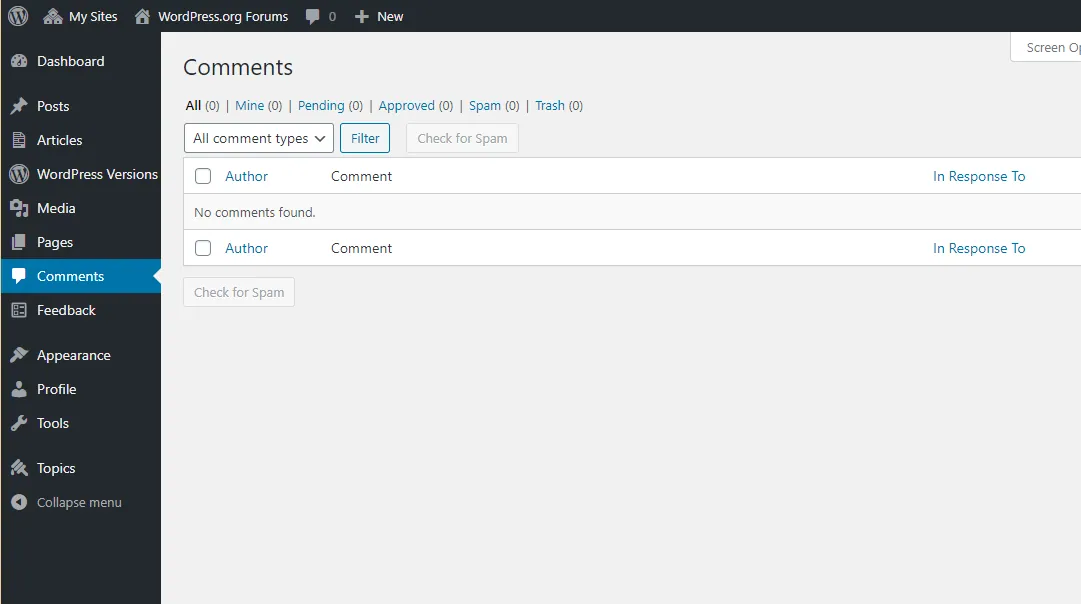
Blog comments follow the standard WordPress queue. A number beside the comment bubble in the admin bar, or beside Comments in the left menu, shows how many are pending. The Activity box on the dashboard lists recent comments too, and hovering over one there gives you approve, reply, edit, spam and trash options without leaving the dashboard.
The full Comments screen shows each commenter's name, email address, website, IP address, submission time and the post they commented on. Approve, Spam and Trash each take one click, and the Bulk Action menu applies Unapprove, Approve, Mark as Spam or Move to Trash to a selection. The WordPress comment moderation guide walks through the same screen in more detail.
Whether anything lands in the queue depends on Settings > Discussion. Ticking Comment must be manually approved holds every comment, and WooCommerce confirms that reviews follow the same rule: with manual approval on, a customer who submits a review is told it is pending approval.
Decide who receives moderation emails
WordPress can email you when a comment is held. The switch is the A comment is held for moderation checkbox under Settings > Discussion, in the Email me whenever group. Notifications go to the administration email address set in Settings > General, so make sure that address belongs to someone who reads it, not a former developer or an unattended inbox.
Post authors are included only when they can moderate. An author holding at least the Editor role receives the email as well, while someone with the default Author role does not, because that role has no comment moderation rights. When the post author's address matches the administration address, WordPress sends a single email.
Missing notifications point to an email delivery problem before a broken setting. The checks used to fix WooCommerce order emails not sending, such as reviewing mail logs and sender authentication, are a sensible starting point for these alerts too.
Review request emails follow the same moderation rules
WooCommerce includes a Customer review request (beta) feature that emails customers after an order is marked Completed and links them to a Review your order page. Enable the feature under WooCommerce > Settings > Advanced > Features, then switch on the email itself at WooCommerce > Settings > Emails > Review request. The email is disabled by default, and the default delay is seven days after completion.
On that page customers rate each eligible product, with a star rating required and written text optional. Fully refunded items and products with reviews disabled are left out. Reviews submitted there pass through your normal product review moderation settings, so switching the feature on can bring a wave of new reviews into Products > Reviews. Because the feature is labelled beta, try it on a test order before turning it on for every customer.
Use Disallowed Comment Keys with care
Settings > Discussion has two word lists that look alike. Comment Moderation keys hold a matching comment in the queue for you to review. Disallowed Comment Keys work the same way, except the WordPress documentation states that matching comments are deleted immediately and without notification. A genuine customer who happens to use a blocked word simply vanishes, and neither of you finds out.
For a shop, the moderation list is the safer home for doubtful words. Whenever you add a moderation key, use the Check past comments against moderation list link beneath the box to see which earlier comments the new rule would have caught. Our guide to stopping comment spam covers the wider Settings > Discussion options for keeping junk out.
Test your review moderation as a customer
A settings screen shows what you chose, not what a customer experiences. Run one test from the customer side before you rely on the setup.
Read the results with care. A held test review shows the queue caught that submission from that account on that product. On its own, one pass does not prove every future review will behave the same way, especially after you change Discussion settings, add a review plugin or switch theme, so repeat the test after any of those changes. If reviews vanish, the form is missing or the queue behaves in ways your settings do not explain, our WooCommerce fixes page explains how to get a developer to investigate.
- Sign out of your administrator account, or open a private browser window, so you are not testing with your own admin access.
- Open a product with reviews enabled and submit a review, choosing a star rating if ratings are switched on.
- If you selected verified owners only, repeat the attempt with an account that has not bought the product and confirm it cannot leave a review.
- Note what the customer sees after submitting, such as a pending approval message when manual approval is on.
- Find the test review in Products > Reviews, approve it, confirm it appears on the product page, then move it to the Trash.
- If you rely on moderation emails, check whether a notification reached the administration inbox.
Sources
Moderate WooCommerce product reviews FAQs
Where do I find WooCommerce product reviews waiting for approval?
Go to Products > Reviews. Hover over a review to approve, unapprove, reply, edit, mark as spam or trash it, and use the filters for type, rating or product to narrow a long list.
How do I make every product review wait for my approval?
Tick Comment must be manually approved under Settings > Discussion. Product reviews follow that rule, and customers are told their review is pending approval after they submit it.
What is the difference between the verified owner label and verified-only reviews?
The label keeps the review form open to everyone but marks reviews from people who bought the product from your store. The verified-only option goes further and stops anyone who has not purchased the product from leaving a review.
Why did a genuine comment disappear without reaching the moderation queue?
Check the Disallowed Comment Keys box under Settings > Discussion first. WordPress documents that comments matching those words are deleted immediately without notification. Remove any suspect word and submit a test comment; if that comment still vanishes, the cause lies elsewhere and needs further investigation.
Can I change a customer's star rating on a review?
Yes, the full Edit screen in Products > Reviews includes the star rating. Changing it alters what shoppers believe the customer said, so reserve edits for necessities and use a reply to add your side.