Why the Discussion settings come first
Spam comments exist to get links in front of people. Spammers want visitors to click through to other sites, so their comments arrive with URLs, generic praise and fake names. WordPress gives you controls aimed squarely at those habits, and they cost nothing to switch on.
Open Settings > Discussion in your dashboard. The options on the Discussion settings screen apply as defaults, and some of them can be overridden on individual posts, so treat this page as the baseline for the whole site. Make your changes, then click Save Changes at the bottom and look for the confirmation message before moving on.
Tighten who can comment and for how long
Start with the rules that shape every comment form on the site. Each one removes an easy route for automated spam while leaving the door open for real visitors.
Be clear about the limits of the first setting. WordPress does not verify the name or email address in any way before a comment goes through, so the requirement makes spammers do a little extra work rather than proving who anyone is. Closing old threads is more decisive: after the number of days you choose, the comment form disappears from older posts, while previously approved comments stay visible.
- Tick Comment author must fill out name and email so anonymous drive-by comments are refused.
- Tick Automatically close comments on articles older than a set number of days, such as 14, if your older posts attract spam rather than conversation.
- Consider Users must be registered and logged in to comment if your site already has a membership or customer login, because only signed-in users can then comment.
- Under Before a comment appears, choose Comment must be manually approved for full control, or Comment author must have a previously approved comment so returning commenters skip the queue.
Hold comments with links for moderation
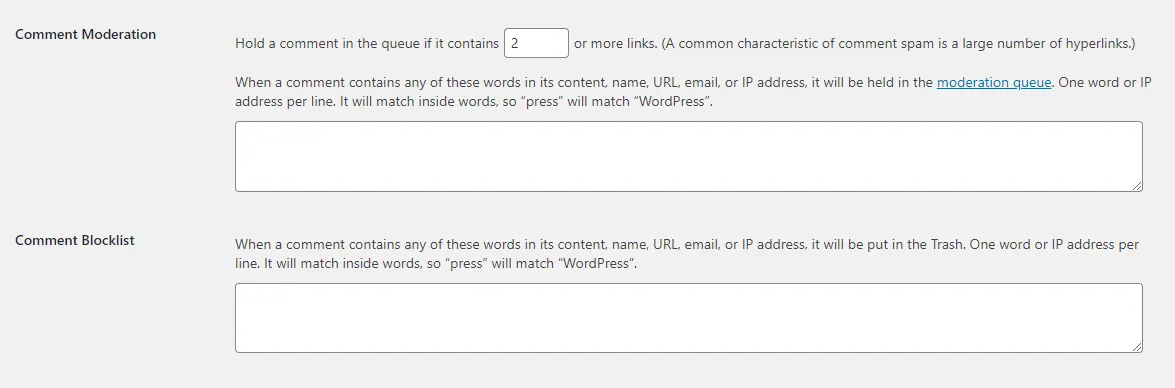
Link limits go after the thing spammers want most. According to the Settings > Discussion documentation, comment spam once carried five, ten or more links, until spammers noticed how easy that made screening and switched to one or two. The Comments guide suggests holding any comment with 2 or more links, which catches more spam while letting a reader share a single relevant link.
Find Hold a comment in the queue if it contains a set number of links under Comment Moderation and enter your number. Held comments go to the Pending view rather than being published, so you still decide what appears.
Below that sits the moderation word list. Any comment containing a listed word in its content, name, URL, email, IP address or browser user-agent string goes to the moderation queue. Enter one word or IP per line, and choose words carefully: matches happen inside words, so press would also catch WordPress. A word that is too short will fill your queue with innocent comments.
Treat the blocklist as a last resort
The Disallowed Comment Keys box, called the blocklist and formerly the Comment Blacklist, uses the same matching as the moderation list. The difference is what happens next. Matches are treated as spam, and WordPress warns that comments matching these words are deleted without warning and that genuine comments can end up deleted.
Combined with matching inside words, that creates a real risk of losing comments from legitimate readers without noticing. A sensible approach is to put a risky word in the moderation list first, watch what it catches for a while, and only move it to the blocklist once you are confident it never appears in genuine comments.
Clear the existing Spam and Pending piles
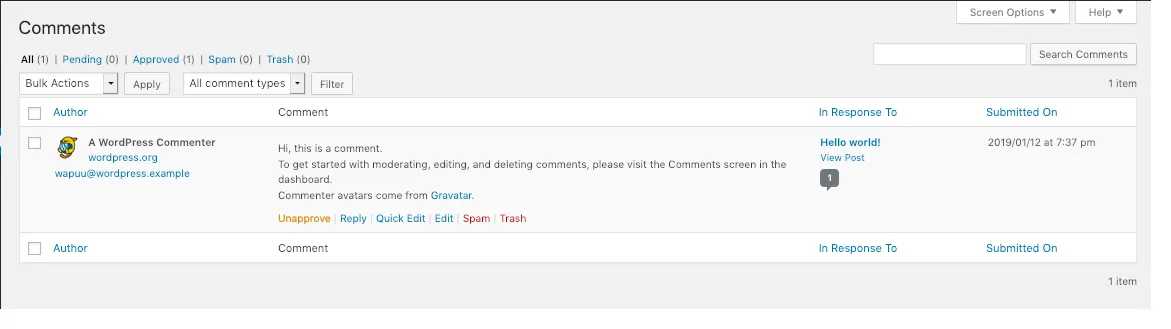
New rules do nothing about the backlog already sitting in your dashboard. Go to Comments and switch between the views WordPress provides. Pending holds comments awaiting your approval, Approved shows published ones, Spam contains flagged comments hidden from visitors, and Trash holds comments you have deleted.
Scan the Spam view before emptying it. Hover over a genuine comment caught by mistake and choose Not Spam to rescue it. Work through Pending next, approving real comments and sending the rest to Spam or Trash.
Trash gives you a safety net, not a permanent store. Any trashed comment can be brought back with Restore, but WordPress deletes Trash permanently after 30 days, so check it promptly if you think something was removed by accident.
Test the result from a logged-out browser
Your own comments as an administrator will not show how the rules treat visitors, so open a private browser window where you are not signed in. Visit a recent post with comments open and submit a test comment containing two links.
If the comment lands in Pending rather than appearing on the page, the link rule is doing its job. Try an older post too and confirm the comment form is gone once it passes your closing period. Afterwards, delete the test comments so they do not clutter your queue.
Keep observation and proof separate when judging the wider effect. A quieter Spam view over the next week is a good sign, but spam volumes rise and fall on their own, so a drop alone does not prove which setting caused it. The logged-out tests are your direct evidence that each rule behaves as intended.
When built-in settings are not enough
If spam still gets through after these changes, WordPress itself points to adding an anti-spam plugin such as Akismet alongside the Discussion settings. Install it from a trusted source and keep it current, because any plugin becomes part of your site's attack surface. Our guide to updating plugins safely covers backups and checks before each update.
For a broader look at moderation and anti-spam controls, our knowledge base article on reducing spam comments walks through the options in more depth, and the wider WordPress security guides cover what to do if spam is a symptom of a bigger problem.
Sources
Stop WordPress comment spam FAQs
Does requiring a name and email stop spam bots completely?
No. WordPress does not verify the name or email address, so a bot can type anything. The requirement filters out the laziest anonymous spam and works best combined with link holding and moderation.
How many links should trigger moderation?
WordPress documentation suggests holding comments with 2 or more links. That catches most link-driven spam while still letting a genuine reader include a single helpful link without waiting.
What is the difference between the moderation list and the blocklist?
Both match words in a comment's content, name, URL, email, IP address or user-agent. The moderation list holds matching comments for your review, while the blocklist treats them as spam and WordPress warns genuine comments can be deleted without warning.
Will closing comments on old posts remove existing comments?
No. After the number of days you set, WordPress removes the comment form from older posts, but previously approved comments stay visible to readers.
Can I recover a comment I deleted by mistake?
Yes, if it is still in Trash. Open Comments, switch to the Trash view and click Restore. WordPress permanently deletes trashed comments after 30 days, so act before then.