Why posts return 404 after a permalink change
A permalink is the permanent web address of a post, page, category or tag archive. WordPress documentation is blunt on the point: these URLs are meant to stay the same, because other sites, search engines, emails and social posts all use them to reach your content.
Changing the structure in Settings > Permalinks rewrites every one of those addresses at once. A post that lived at example.com/2024/03/sample-post/ becomes example.com/sample-post/ under the Post name option, and the old address no longer points anywhere. A 404 on an old link after a deliberate change is therefore expected behaviour, not a fault.
The harder case is when the new addresses fail too. When the URLs shown in your dashboard return 404 as well, WordPress is generating the right links but the server is not passing those requests back to WordPress. That gap between what WordPress wants and what the server does is where the diagnosis below focuses.
Step 1: Confirm the structure in Settings > Permalinks
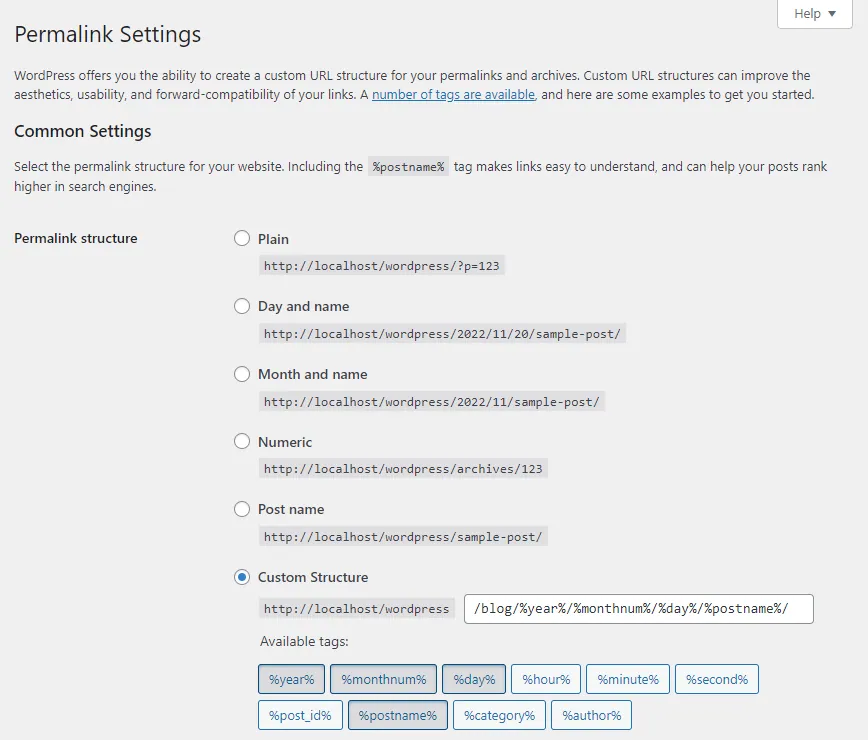
Start by opening Settings > Permalinks and checking which option is selected. WordPress offers six: Plain, Day and name, Month and name, Numeric, Post name and Custom structure. After a migration, confirm the selection matches the one the old site used, since a mismatch changes every URL even though nobody touched the setting on purpose.
If you use a custom structure, check it ends with the postname or post_id structure tag so each address identifies a single post. Glance at the optional Category base and Tag base fields as well. Leaving them blank uses the defaults of category and tag, and a changed base alters every archive URL.
Simply visiting this screen also triggers a flush of WordPress's rewrite rules, the internal list that maps pretty addresses to content. According to the official screen documentation, there is no need to save just to flush them. Load the screen, then test a post in a private browser window before changing anything else, so you know whether the flush alone made a difference.
Step 2: Save and read the .htaccess message
If posts still return 404, click Save Changes at the bottom of the screen and read the message WordPress shows. On an Apache server, WordPress tries to write its rewrite rules into a file called .htaccess in your site's root folder.
A message saying "Permalink structure updated." means WordPress wrote the rules itself. The other outcome is "You should update your .htaccess now.", which appears when the file is not writable. Near the bottom of the screen, WordPress then shows a text box containing the rewrite rules your chosen structure needs, and those rules have to go into .htaccess by hand.
Editing a server file carries some risk, so keep a copy of the original first. If the site shows a server error after your edit, restore that copy and work through our guide to fixing a 500 internal server error before trying again.
- Connect with your host's file manager or an FTP client and enable the option to show hidden files, because names starting with a dot are hidden by default.
- Download the existing .htaccess from the WordPress root folder and keep it as a backup.
- Click inside the rules box on the Permalinks screen, press Ctrl + A to select everything and copy it.
- Paste the rules into .htaccess and save. If your computer refuses a filename beginning with a dot, save it as htaccess.txt, upload it, then rename it to .htaccess on the server.
- Return to Settings > Permalinks and test several posts and pages.
Step 3: Check your host supports pretty permalinks
Every structure except Plain depends on the web server rewriting requests. WordPress documentation states that the hosting provider should configure the server for pretty and almost pretty permalinks, and that you contact the host when that configuration is missing.
A controlled comparison helps here. Plain addresses such as example.com/?p=123 work on all server environments. Switch briefly to Plain and open a post: if it loads, while the same post under Post name returns 404, the evidence points towards server rewriting rather than missing content. Treat that as a strong pointer, not proof, then switch back to your intended structure promptly because Plain changes your live URLs too.
Everything about .htaccess above applies to Apache. Nginx and some other servers ignore that file entirely, so pasting rules into it achieves nothing. On those servers, ask your host to confirm rewrite support for WordPress and to apply the configuration on their side. Our notes on preparing server changes with your hosting provider cover how to frame that request and test the result.
Old links after a structure change or host move
Once new addresses load correctly, old addresses from a previous structure will keep returning 404, because the permalink screen saves a structure and nothing more. It does not create redirects from former URLs to new ones.
Decide whether those old links matter. Bookmarks, links from other websites and older shared posts all use them. If the change was accidental, restoring the original structure brings the old addresses back. If the change was deliberate, or the move also changed your domain, plan redirects from old URLs to their new destinations, as described in our guide to changing a WordPress URL and domain. Redirects protect visitors following old links; they come with no promise about search rankings.
Verify the fix and record what changed
Test more than one address. Open a recent post, an older post, a page, a category archive and a tag archive in a private window, using the links shown in your dashboard rather than old bookmarks.
Keep a short note of each step and the result straight after it: visited the screen, saved, pasted rules, host change. A site that works after three changes shows you the combination succeeded, while the note shows which step coincided with the fix. That record makes the next migration far quicker, and gives your host something concrete if the 404s return.
Sources
WordPress permalinks 404 FAQs
Why does my homepage work but every post shows a 404?
The homepage loads without any rewriting, while pretty post addresses need the server to pass requests to WordPress. Missing .htaccess rules or absent server rewrite support break posts and leave the homepage untouched.
Do I need to click Save Changes to flush rewrite rules?
No. Visiting Settings > Permalinks flushes the rewrite rules. Save Changes is needed when you change the structure or when WordPress has to show you the .htaccess rules to copy.
What does You should update your .htaccess now mean?
WordPress could not write to the .htaccess file. Copy the rules from the box near the bottom of the Permalinks screen into .htaccess yourself, keeping a backup of the original file first.
My host uses Nginx. Should I still edit .htaccess?
No. Nginx does not read .htaccess, so the rules there have no effect. Ask your host to confirm WordPress rewrite support and apply the configuration in their server settings.
Will changing back to my old permalink structure fix broken old links?
Restoring the exact previous structure brings back the old addresses, though any links shared under the new structure then stop working. Choose one structure and keep it, planning redirects if a change is deliberate.