What the WordPress 7.1.4 security release fixes
Three weeks earlier, 7.1.3 fixed seven issues, so this release is considerably larger. Most of the new fixes concern stored cross-site scripting (XSS): a logged-in user saves content containing hidden script, and the script runs later in someone else's browser. Seven of the 17 advisories sit in the Interactivity API, the part of WordPress behind interactive blocks, while others involve the Customizer and blocks such as Categories, Image and Playlist.
According to Patchstack's analysis, almost all of these flaws need an account first, with Contributor as the typical starting point. Two need no login at all. One lets an anonymous visitor see an unpublished Customizer preview, although the setting values themselves stayed protected. The more serious one is a race condition in the upgrade process that can end in remote code execution, meaning an attacker runs their own code on your server. The release also refreshes the bundled root certificates following the eMudhra revocation.
Update to 7.1.4 or your branch's backport
The official release post recommends updating straight away. Sites with automatic background updates start the process on their own, so some owners will find the work already done when they log in.
Sites on an older major version receive a backported fix instead of 7.1.4. Patchstack lists 7.0.8, 6.9.11, 6.8.12, 6.7.11, 6.6.11, 6.5.14 and 6.4.14, continuing down to 4.7.39, and reports them shipping on the same day. WordPress.org described the backports as still in progress when it announced the release, so confirm your branch's version has actually reached your site. Anything on 4.6 or older gets no fix, and only the newest WordPress version is actively supported, which makes an old branch a reason to plan a full upgrade.
- Take a backup, or confirm your host holds a recent one you can restore.
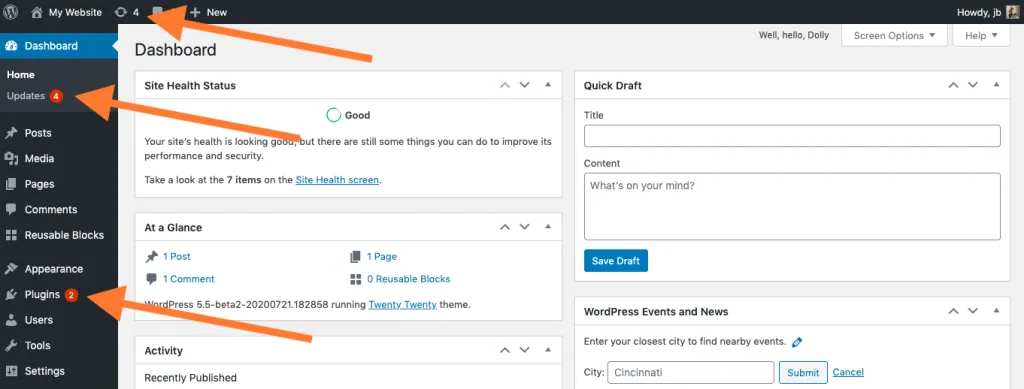
- Open Dashboard > Updates and note the version currently installed.
- Click Update Now, or install the backport for your branch if you are staying on an older major version.
- Reload Dashboard > Updates and check the new version number appears.
The no-login flaw in the upgrade folder
Whenever WordPress installs or updates anything, it unpacks the package into wp-content/upgrade/, and the web server serves that folder like any other. Before 7.1.4 the folder name was predictable, and a cleanup step deleted the index.php file that stops the folder being listed. For the few seconds an update takes, a full copy of WordPress sat at a guessable, browsable address, including an installer that runs without your site's configuration.
Patchstack rated the attack high complexity and would not call it practical to exploit, because the attacker has to request the right address at exactly the right moment. The window still opens on every update, unattended ones included, and requires no login or interaction. Version 7.1.4 adds 16 random characters to the folder name and keeps index.php in place.
Your security plugin cannot help with this one. The unpacked copy loads WordPress from its own files, so a PHP firewall running inside your site never sees the request. The block has to happen at the web server: deny access to wp-content/upgrade/ and make sure the folder cannot be listed.
How to check and block wp-content/upgrade/
Between updates the folder holds nothing but an index.php file, so testing it from a browser is safe.
Read the result as an observation rather than proof. A blank page shows index.php is present, but older versions removed that folder's contents during cleanup, so protection that depends on a file inside the folder disappears at the exact moment it matters. A 403 response shows the server refuses the request right now; your host's confirmation that the rule sits in the server or site-wide configuration tells you it will survive future updates.
- Open a private browser window and visit your domain followed by /wp-content/upgrade/.
- If you see a list of files or folders, the directory is browsable and needs blocking now.
- If you see a blank page or a 403 Forbidden error, note which one appears.
- Ask your host to deny web access to wp-content/upgrade/ in the server configuration or the site's main rules file, rather than inside the folder itself.
- Repeat the browser test and confirm a 403 Forbidden response.
Why Contributor accounts matter in this release
Almost every other fix starts with someone who can log in and write content. A Contributor can draft posts without publishing them, which makes the role easy to hand to a guest writer and then forget. Several of these flaws turn such a draft into a trap: the hidden script fires when an editor or administrator opens the post in the block editor or the Customizer. A few require more, such as Author access to upload files or Editor access for the personal data erasure screen.
Updating fixes the code. The audit below tells you who held the access these flaws depended on, which is worth knowing regardless.
- Open Users > All Users and filter by Contributor, Author and Editor.
- Remove accounts nobody recognises and downgrade anyone who no longer needs to write.
- In Settings > General, if Anyone Can Register is ticked, make sure New User Default Role is set to Subscriber.
- If a plugin or custom role grants moderate_comments, be aware that 7.1.4 now requires edit access to a post before its notes can be read or changed.
Confirming the WordPress 7.1.4 update worked
Reload Dashboard > Updates once the update finishes. The screen should report 7.1.4, or your branch's backport number, as the installed version, and Tools > Site Health > Info lists the same number under the WordPress section.
A matching version number confirms the patched code is installed. When the front end and editor load normally, the update caused no visible breakage, but neither one reveals whether anyone exploited the upgrade window during an earlier update. For an outside view, BugShield's free uptime checker shows the HTTP response from a single request sent from BugShield's server at that moment. That result confirms the site answered then; it does not confirm the update worked.
Sources
WordPress 7.1.4 security release FAQs
Do I need to do anything if automatic background updates are switched on?
Yes, briefly. Confirm the new version on Dashboard > Updates, because an update can stall or fail. Background updates also leave the upgrade folder and your user list untouched, so the folder check and Contributor audit still apply.
My site runs WordPress 6.8. Do I have to move to 7.1.4?
No. Patchstack lists 6.8.12 as the backport carrying these fixes for the 6.8 branch. Check that version appears on Dashboard > Updates, then plan a move to the current release, since only the newest version is actively supported.
How dangerous is the upgrade-folder flaw in practice?
Patchstack rates it high complexity and does not consider it practical to exploit, because the attacker must request a guessable address during an update lasting a few seconds. The concern is that it needs no login and the window reopens on every update, which is why blocking the folder at the web server is worth doing.
Will my WordPress security plugin block the upgrade-process attack?
No. The unpacked copy in wp-content/upgrade/ loads WordPress from its own files, so a PHP firewall plugin on your site never runs for that request. Only a web server rule denying access to the folder stops it.
What did the Customizer changeset flaw expose?
A visitor with no account could load the most recent unpublished Customizer changeset, seeing its ID and the rendered preview. Setting values remained protected by their own permissions. Version 7.1.4 now requires the customize capability for those preview requests.