What the Reddit poster says happened
According to the original poster, their site began throwing fatal errors on every page one morning. They traced the errors to a plugin they say they never installed: Image Core, in the folder wp-content/plugins/image-core/, listing StoneDock Tools as its author, version 3.1.1, and describing itself as a small maintenance toolkit.
The poster says the code was meant to create a user called render_maint13, with the display name Site Tools, give it the Editor role plus the manage_options and install_plugins capabilities, and then sign the visitor in. By their account, a coding error (Undefined constant ImageCore::FIELD) stopped the plugin before the user was created, which is also why every page crashed.
Their site ran UpdraftPlus 1.26.8 and had an UpdraftCentral key. Their access logs showed two POST requests to the home page, with the new plugin active and failing within seconds of the second one. They say they cannot confirm what those requests contained, because the logs do not record request bodies, and in a later edit they added that a breach of their UpdraftCentral account was entirely possible.
The support message the poster attributes to TeamUpdraft
The poster later shared a message they say came from TeamUpdraft support. In that text, the vendor reportedly identified unauthorised access to TeamUpdraft on 18th October, believed it may have exposed UpdraftCentral connection keys, and said the access route had been closed. The quoted message recommends removing the malicious plugin, checking for unfamiliar users, deleting existing UpdraftCentral keys, changing WordPress administrator and TeamUpdraft passwords, and updating UpdraftPlus. The final instruction, which begins to mention reconnecting, is cut off in the public post.
We are treating that text as the poster's account of what support told them rather than as a published advisory. Because the public version ends mid-instruction, the steps further down rest on ordinary good practice for a suspected key exposure. Before creating any new connection, wait until TeamUpdraft itself confirms the service is safe to use again.
Backdoors, connection keys and why an Editor label is not enough
A backdoor is unauthorised access that an intruder sets up so they can keep coming back. Some backdoors are code that answers a secret request; others hide behind a normal login, such as an extra account the owner never created. The plugin described on Reddit aimed at the second kind, and an account like that survives even after you change your own password.
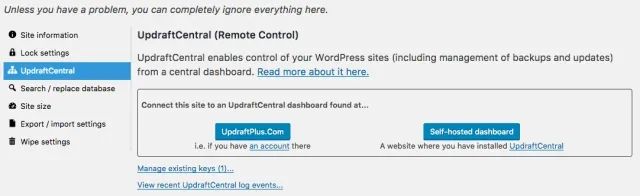
UpdraftCentral is the TeamUpdraft dashboard for looking after several sites from one place. The setup guide from TeamUpdraft explains that you create a key in UpdraftPlus on the site you want to manage, paste it into the dashboard, and the site is then ready to be remotely managed. Because the key is what links the two, give it the care you would give a password. The companion guide to disconnecting a site confirms that a connection can be removed from either end, including by deleting the key from the Advanced tab of UpdraftPlus on the managed site.
Roles in WordPress are bundles of capabilities, the individual permissions that decide what an account can do. Editor normally covers writing and publishing content. The reported code added manage_options, which controls site settings, and install_plugins, which lets an account add new code. A user list showing Editor would therefore hide an account with close to administrator power, so look at capabilities as well as the role column whenever an account seems out of place.
Reading the evidence carefully
Several details are easy to over-read. The log entries carried the user agent WordPress/6.4; class-udrpc.php, but a user agent is a label chosen by whoever sends the request, so it cannot prove which route the requests took. A key existing on a site does not prove that key leaked. No count of affected sites has been established, and this report does not establish a new code vulnerability in UpdraftPlus 1.26.8 or a tampered official release.
The poster compared the incident with CVE-2026-10795, an authentication bypass in UpdraftCentral communication that TeamUpdraft announced and fixed in June 2026. Treat that earlier issue as background only. The June fix, in UpdraftPlus 1.26.5 (free) or 2.26.5 (Premium) and later, addressed that earlier vulnerability, so running a fixed version is not evidence of protection against the October key exposure described in the support message the poster shared.
UpdraftCentral backdoor checks when your site looks normal
Most owners reading this will have a site that loads, behaves and shows nothing odd. For them the job is a short review rather than a clean-up. One trade-off deserves a moment of thought first: deleting a key disconnects that site from UpdraftCentral, so remote backups, updates and other dashboard tasks stop for it. Agencies managing many client sites from one dashboard should agree the timing with whoever runs it, rather than discovering the gap later.
Please do not visit any trigger URL from the report to test your own site. Doing so tells an owner nothing useful and risks running someone else's code.
- Open the UpdraftPlus settings on your site and go to the Advanced Tools tab, where TeamUpdraft's setup guide places the UpdraftCentral (Remote Control) settings. The message the poster shared gives the path as Settings > UpdraftPlus > Advanced Tools > UpdraftCentral > Manage existing keys. Note any keys you do not recognise.
- Delete keys you no longer use or cannot account for, and wait for TeamUpdraft to confirm the service is safe before creating a fresh connection.
- Change your TeamUpdraft password and your WordPress administrator passwords to long, unique ones, and switch on two-factor authentication where it is offered.
- Look through Users > All Users and Plugins > Installed Plugins for anything nobody on your team added, checking capabilities on any account that looks unfamiliar.
- Keep UpdraftPlus and the rest of the site updated.
If you find signs of an intrusion
Finding an unexpected plugin, account or key moves you from a review into incident response, and the order of steps matters because careless clean-up destroys the evidence you need. The hacked-site guidance from WordPress.org makes the same point: write down what you saw, when you saw it and your timezone, along with any recent changes, before you start removing things.
Restoring a backup is the step most worth slowing down for. A copy taken before the first visible symptom is not automatically clean, since an intruder can sit quietly before anything breaks. Restoring also overwrites newer orders, posts and form entries, so treat it as a planned job with your host or developer, never as a routine check.
- Contact your host or developer before making large changes, so someone can review files, database and logs together.
- Preserve evidence privately: download access logs, copy any unfamiliar plugin folder and export your user list, then store them offline and away from the web server.
- Revoke any suspect UpdraftCentral keys from the site.
- Review the capabilities of every unfamiliar account, not only its role label.
- Remove unauthorised code and users once they are confirmed and your evidence copy is safe, and work with your host on changing hosting and other access passwords.
- Investigate the entry route before any restore, then test a candidate backup on an isolated copy and plan the final restore with your host.
Checking the result without false comfort
When the site is working again, record what you can see: the unwanted plugin is gone, the user list matches the people who should have access and the keys screen holds only connections you expect. Those observations confirm the visible pieces were removed. A clean scan, or simply not finding the names from this report, does not establish safety, because intruders rename files and accounts.
Persistence is the part that catches owners out, as our write-up on self-healing WordPress malware shows with code that returned from the database after the files were cleaned. If you cannot tell whether anything remains, ask someone who can examine the whole site before you trust it again.
Sources
- Reddit r/Wordpress: Backdoor plugin dropped on my WordPress site through UpdraftPlus's remote channel (UpdraftCentral)
- TeamUpdraft Documentation: How to add a site to UpdraftCentral
- TeamUpdraft Documentation: How to disconnect a site from UpdraftCentral
- TeamUpdraft: Important security update for UpdraftPlus and UpdraftCentral users (June 2026)
- WordPress.org Documentation: FAQ My site was hacked
UpdraftCentral backdoor FAQs
Is UpdraftPlus 1.26.8 vulnerable to this backdoor?
This report does not establish a new code vulnerability in 1.26.8. The poster ran that version, and the support message they shared points to possibly exposed connection keys rather than a bug. Keep UpdraftPlus updated, but an update alone does not cancel a key that may have been copied.
Should I delete my UpdraftCentral keys if my site looks fine?
Delete any key you no longer use or cannot account for. Removing a key disconnects that site from remote management, so if you or an agency rely on the dashboard, agree the timing first and wait for TeamUpdraft to confirm it is safe before reconnecting.
Can my access logs prove UpdraftCentral was the way in?
Not on their own. Logs show request times and paths, and the user agent is set by whoever sends the request. Timings that line up with a plugin appearing are useful evidence, but they remain an observation rather than proof of the route.
My security scan came back clean. Does that mean my site is safe?
A clean scan shows the scanner found nothing it recognises. Attackers rename files and accounts, so the absence of Image Core or render_maint13 does not establish safety. Check users, capabilities, plugins and keys by hand as well.
Should I restore a backup just to be safe?
No. Restoring overwrites newer content and orders, and a backup from before the first symptom is not necessarily clean. Restore only after an intrusion has been investigated, test the backup on an isolated copy and plan the restore with your host or developer.